![[Top]](../images/home.jpg)

![[Contents]](../images/contents.jpg)
![[Prev]](../images/previous.jpg)
![[Next]](../images/next.jpg)
![[Last]](../images/index.jpg)


This chapter provides complete information about the MAX TNT commands. The information is designed for quick reference, and does not include tutorials. All commands are listed alphabetically. For an overall alphabetic listing, see the general table of contents.
admin> ? command-nameFor an alphabetic list of commands, just enter a question mark:
admin> ?
?
Description: Displays a list of all available commands, or help text about a specific
command. A list of all available commands also shows the permission level required for the
use of each command.
Permission level: User
[-a]|[command-name
Option |
Description |
|---|---|
-a |
List all commands. (Without this option, the list includes only commands authorized by the current User profile.)
|
command-name |
Display information about the specified command.
|
]
Example: To display a list of commands authorized for your current login:
admin> ?To display help text about a command:
? ( user )
auth ( user )
callroute ( diagnostic )
clear ( user )
clock-source ( diagnostic )
clr-history ( system )
connection ( system )
date ( update )
debug ( diagnostic )
delete ( update )
device ( diagnostic )
dir ( system )
dircode ( system )
ether-display ( diagnostic )
fatal-history ( system )
format ( code )
fsck ( code )
get ( system )
hdlc ( system )
help ( user )
if-admin ( diagnostic )
igmp ( system )
[More? <ret>=next entry, <sp>=next page, <^C>=abort]
admin> ? dirDependencies: The current security level is set by the current User profile and determines which commands are displayed in response to the
dir list all profile types
dir profile-type list all profiles of the specified type
dir profile-type profile-index list the specified profile instance
? command. If the current User profile does
not have sufficient privileges to execute a command, that command is not displayed unless you
include the -a option. By default, commands with the User security level are always displayed.
For details, see Auth.
ARPtable
Description: Displays or modifies the MAX TNT Address Resolution Protocol (ARP) table.
Each entry in the ARP table associates a known IP address with a physical address. For remote
IP addresses, the MAX TNT can use the ARP table to respond with its own MAC address to
ARP requests.
Permission level: System
[-a IP_address MAC_address]|[-d IP_address]|[-f]
Example: To display the ARP table:
admin> arptable

IP Address       MAC Address          Type  IF   Retries/Pkts/RefCnt  Time Stamp
10.103.0.2      00:C0:7B:7A:AC:54    DYN   0        0/0/552          22760

10.103.0.220    00:C0:7B:71:83:02    DYN   0        0/0/2791         22760

10.103.0.1      08:00:20:7B:24:27    DYN   0        0/0/4296         22811

10.103.0.8      00:00:0C:05:B3:A2    DYN   0        0/0/6493         23058

10.103.0.7      00:00:0C:76:58:4E    DYN   0        0/0/6572         23233

10.103.0.49     00:C0:80:89:19:95    DYN   0        0/0/397          23208
admin> arptable -a 10.9.8.20 00A024A61535See Also: NSlookup
Auth
Description: Authenticates your current login by applying a specified User profile. Use this
command to increase or decrease the permissions of the current login. For information about
permission levels in User profiles, see the description of the User profile.
Permission level: User
Option |
Description |
|---|---|
user-name |
Authenticate the specified User profile.
|
Example: To login as Joe:
admin> auth joeIf you supply the proper password for the User profile you've specified, the MAX TNT enables the privileges in that profile and then displays the system prompt again. Note that the User profile may specify its own system prompt, which is a useful way to flag certain permission levels. For example:
Password:
admin> auth adminIf you supply the wrong password at the prompt, you'll see the following message:
Password:
Login incorrect
User:Enter the user name again to display the Password prompt.
See Also: Whoami
BRIchannels
Description: Displays the status of all the BRI channels on the MAX TNT.
Permission level: System
|-d|-c|-i
Option |
Description |
|---|---|
-a |
Display all available BRI channels.
|
-d |
Display disabled BRI channels.
|
-c |
Display all possible BRI channels.
|
-i |
Display in-use BRI channels.
|
Example: To display all BRI channels, specify the -a option:
admin> brichannels -aThe BRIchannels command displays the following information:
Column |
Description |
|---|---|
dvOp |
The current operational state of the channel (also specified by the Device-State setting):
|
dvUpSt |
The status of a channel in normal operations mode:
|
dvRq |
The required state of the channel as specified by the Reqd-State setting:
|
SAdm |
The desired administrative state of the channel (also specified by the Desired-State setting):
|
BRIdisplay
Description: Displays D-channel traffic for an IDSL card. You must first execute the Open
command to open a session with the card.
Permission level: Diagnostic
[channel]
Example: The following commands open a session with an IDSL card in slot 7, and display up to 12 bytes of the traffic in every D channel on the card:
admin> open 1 7
idsl-1/7> bridisplay 12To turn off the display, set count to zero:
idsl-1/7> bridisplay 0
CADSLlines
Description: Displays all ADSL-Cap lines, including disabled, busy, and unused channels.
Permission level: System
-a|-d|-f|-u
 Option

 Description

-a


 Display all channels.

-d


 Display all disabled channels.

-f


 Display all free channels.

-u


 Display all in-use channels.
Example: To display all ADSL-Cap channels:
admin> cadsllines -a
All CAP ADSL lines:

                        (OperState   UpStatus    ReqState    AdminState)
  Line {  1 14  1 }     (Down        Idle        UP          UP    )

  Line {  1 14  2 }     (Down        Idle        UP          UP    )

  Line {  1 14  3 }     (Down        Idle        UP          UP    )

  Line {  1 14  4 }     (Down        Idle        UP          UP    )

  Line {  1 14  5 }     (Down        Idle        UP          UP    )

  Line {  1 14  6 }     (Down        Idle        UP          UP    )
The output contains the following fields:
Callroute
Description: Displays the call-routing database (the total set of all Call-Route profiles). For
information about how call routing works and about how to create Call-Route profiles, see the
description of the Call-Route profile, and refer to the MAX TNT Hardware Installation Guide.
Permission level: Diagnostic
-ah|-an|-ad|-d|-t|-?
Example: In the following display, the output shows host-side call routing entries directed to a modem card. All the entries are defaults, except for one Call-Route profile that specifies an inbound phone number.
admin> callroute -ah
device # source type tg sa phoneA zero or null field always means any. The call-routing database displays the following information:
1:12:02/0 0 0:00:00/0 any-call-type 0 0 4812
1:12:01/0 0 0:00:00/0 voice-call-type 0 0
1:12:03/0 0 0:00:00/0 voice-call-type 0 0
...
1:12:47/0 0 0:00:00/0 voice-call-type 0 0
1:12:48/0 0 0:00:00/0 voice-call-type 0 0
See Also: Modem, HDLC, Show, T1channels
Clear
Description: Clears the terminal session screen and places the system prompt at the top row
of the VT100 window.
Permission level: User
clear [-r]
Option |
Description |
|---|---|
-r |
Reset the terminal session's VT100 attributes.
|
Example: To clear the screen:
admin> clear
Clock-Source
Description: Displays the current clock-source settings for the system. If a line is specified as
the master clock-source, it provides the source of timing information for synchronous
connections throughout the multishelf system. The clock allows the sending device and the
receiving device to determine where one block of data ends and the next begins. If multiple
lines specify that they are eligible to be the clock-source, you can assign clock-source priority
among multiple lines. In the output of the Clock-Source command, the value 1 signifies the
highest priority. For information about setting clock-source priority, see the MAX TNT
Hardware Installation Guide.
The Clock-Source command applies to units with T1, E1, T3, or FrameLine cards. It lists only currently eligible local clock sources. Sources with layer 2 up, which are preferred, are marked with an asterisk. In addition, a message is logged whenever the system clock source changes. You can execute this command on the shelf controller or on an individual T1, E1, T3, or FrameLine card. You must first execute the Open command to open a session with the card.
Example: The Clock-Source command on the shelf controller shows the master clock's slot card line number:
admin> clock-sourceOn the slot cards, the Clock-Source command uses one-base indexes for the card's lines. For example, to open a session with a T1 card and display its clock-source settings:
Master line: 1
Source List:
Source: line 1 Available* priority: 2
Source: line 3 Available priority: 2
admin> open 1 1
t1-1/15> clock-sourceFollowing are examples of log messages generated for clock-source transitions:
Master line: 1
Source List:
Source: line 1 Available* priority: 2
Source: line 3 Available priority: 2
LOG notice, Shelf 1, Controller, Time: 19:44:39--See Also: Line, Open, T1channels
Master clock source changed to slot-1/8 line 1
LOG notice, Shelf 1, Controller, Time: 10:34:56--
Master clock source changed to local oscillator
Clr-History
Description: Clears the fatal-error history log.
Permission level: System
Example: To display the fatal-error history log, enter the Fatal-History command:
admin> fatal-history
OPERATOR RESET: Index: 99 Revision: 1.0F Controller (tntsr)To clear the log:
Date: 09/20/1997. Time: 16:56:01
Reset from unknown, user profile super.
OPERATOR RESET: Index: 99 Revision: 1.0F Controller (tntsr)
Date: 09/24/1997. Time: 11:56:10
Reset from unknown, user profile super.
admin> clr-historyThe log is now empty:
admin> fatal-history
admin>See Also: Fatal-History
Connection
Description: Specifies that the upper-left portion of the status window should display
connection status information. If the status window is not already displayed, this command
opens it with the connection status information displayed.
Permission level: System
Example: An administrator opens a window with connection status information displayed:
admin> connection
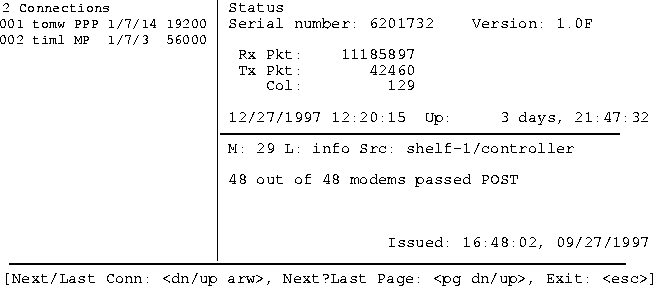
For each active connection, the displays includes a line that shows the user or station name, type of connection, T1 shelf/line/channel on which the call was placed or received, and the bandwidth or baud rate. You can press the Down-Arrow key to scroll through the list of active connections.
To display a prompt below the status window, press the Escape key. To close the status window, enter the Status command:
admin> statusSee Also: Line, List, Log, Status, View
Date
Description: Displays or sets the MAX TNT system date and time. The date and time are
stored in the Timedate profile.
Permission level: Update
[yymmddhhmm]
Example: To set the MAX TNT system date and time to noon, December 31, 1997:
admin> date 9712311200
Debug
Description: Enables or disables diagnostic output.
Permission level: Diagnostic
| off
Syntax element
Description
on
Enables diagnostic output. off
Disables diagnostic output.
Example: To enable diagnostic output:
admin> debug on

Diagnostic output enabled

admin> FRMAIN: Setting timer DCE

FRMAIN: time 88121200, mkstatus type 1, seq (026,025)
Delete
Description: Permanently deletes a profile from local storage. Any flash space that was used
by the profile becomes available to the system.
Permission level: Update
[-f] profile-type [profile-index]
Example: To delete the Connection profile previously created for Tom Lynch:
admin> delete conn tlynch

Delete profile CONNECTION /tlynch? [y/n] y

CONNECTION /tlynch deleted
admin>See Also: Get, New, Read
Device
Description: Initiates a state change in a specified device. The device is specified by its
interface address. This command is typically used to administratively up or down a device. For
a list of devices supported by the MAX TNT, see the description of the Device-Address
parameter.
Permission level: Diagnostic
|-t|-u|-? interface_address
Example: To administratively down modem #24 in slot #3 on shelf #1:
admin> device -d {{1 3 24} 0}
See Also: Show, Slot
Dir
Description: Lists profiles. With no options, the Dir command lists all profile types supported
by the MAX TNT. It can also be used to list all profiles of a certain type, or to list file-system
information about a specific profile.
Permission level: System
[profile-type [profile-index]]
Option |
Description |
|---|---|
profile-type |
List all the profiles of the specified type.
|
profile-index |
Display information about the specified profile.
|
Example: To list all profile types, enter the Dir command with no options:
admin> dirTo list all Connection profiles, as well as all RADIUS profiles for nailed-up connections, specify
ADMIN-STATE SNMP Administrative State
ADSL-CAP Cap adsl line parameters
ADSL-CAP-STAT Cap Adsl line status
ADSL-CAP-STATISTICS Cap adsl Interface Statistics
ADSL-CAP-STATUS Cap adsl Interface Status
ANSWER-DEFAULTS Answer profile
ATALK-GLOBAL Global Appletalk parameters
ATALK-INTERFACE Appletalk interfaces
ATMP ATMP profile
BASE System version and enabled features
CALL-INFO Active call information
CALL-LOGGING Call logging
CALL-ROUTE Call routing attributes
CONNECTION Connection (WAN) profiles
DEVICE-STATE Device Operational State
ETHER-INFO Ethernet Interfaces Information
ETHERNET Ethernet Interfaces Configuration
EXTERNAL-AUTH External authentication info
FILTER Filter Profile
FIREWALL Firewall Profile
FRAME-RELAY Frame-Relay link configuration
IDSL BRI line parameters
IDSL-STAT BRI line status
IP-GLOBAL Global TCP/IP parameters
IP-INTERFACE IP interfaces
IP-ROUTE Static IP routes
IPX-GLOBAL Global IPX parameters
IPX-INTERFACE IPX interfaces
IPX-ROUTE Static IPX routes
IPX-SAP-FILTER IPX Sap Filters
LAN-MODEM LAN Modem Disable State
LOG System event logging configuration
SDSL Sdsl line parameters
SDSL-STAT Sdsl line status
SDSL-STATISTICS Sdsl Interface Statistics
SDSL-STATUS Sdsl Interface Status
SERIAL Serial interfaces
SLOT-INFO Slot Info profile
SLOT-STATE Slot Operational State
SLOT-TYPE Slot Type profile
SNMP SNMP configuration
SWAN Swan line parameters
SWAN-STAT Swan line status
SYSTEM System-wide basic parameters
T1 DS1 line parameters
T1-STAT DS1 line status
T3 DS3 line parameters
T3-STAT DS3 line status
TERMINAL-SERVER Terminal server parameters
TIMEDATE Current system date and time
TRAP SNMP trap destinations
USER Administrative user accounts
conn as the profile type. For example:
admin> dir connThis form of the command is useful for displaying valid profile indexes. The index is in the rightmost field. The listing includes the following information:
169 08/31/1997 22:21:07 dallas
195 09/12/1997 10:14:08 chicago
189 11/14/1997 09:34:44 nyc1
177 11/14/1997 11:38:09 nyc2
187 10/22/1997 15:34:53 la
201 10/14/1997 14:29:32 sacto
admin> dir conn dallasSee Also: List, Get
169 08/31/1997 22:21:07 dallas
Dircode
Description: Displays the contents of the PCMCIA flash-card code directory. The flash cards
contain code for the slot cards, run-time shelf controller, and profiles. The system
configuration is stored in the onboard NVRAM.
Permission level: System
Example: To display the contents of the flash-card code directory:
admin> dircodeThe information displayed by this command includes the card number (1 or 2) and the size of the code directory. For each expansion module installed in the system, it also shows the following information:
Flash card code directory:
Card 1, directory size 16
slot-card-8t1 reg good 146634 Dec 26 10:15 v1.2
slot-card-8e1 reg good 259484 Jan 16 21:58 v1.2
slot-card-48modem reg good 386566 Dec 26 10:15 v1.2
slot-card-192hdlc reg good 457360 Jan 5 12:21 v1.2
DNStab
Description: Displays the local DNS host table, which supplies host IP addresses when DNS
fails to successfully resolve a hostname. This table is not a DNS cache, but a fallback option,
listing up to eight host addresses for important or frequently used connections.
Permission level: System
[entry-number]
Option |
Description |
|---|---|
-s |
Display the local DNS table.
|
entry-number |
Display an entry from the local DNS table. You can specify an integer from 1 to 8.
|
Example: To display the local DNS table:
admin> dnstab -s
Local DNS Table:enabled, AutoUpdate: enabled.

Local DNS Table
Name IP Address # Reads Time of last readThe output contains the following fields:
__________________________ _________________ ________ _______________
1: "barney" 200.65.212.12 * 2 Feb 10 10:40:44 97
2: "rafael" 200.65.212.23 3 Feb 10 9:30:00 97
3: "donatello" 200.65.212.67 1 Feb 11 11:41:33 97
4: "wheelers" 200.65.212.9 1 Feb 12 8:35:22 97
5: "tiktok" 200.65.212.148 4 Feb 12 7:01:01 97
6: "" ------- - ---
7: "wilma" 200.65.212.8 10 Feb 15 10:02:58 97
8: "" ------- - ---
DS3link
Description: Enables you to carry out a diagnostic session with the DS3 card. You must first
execute the Open command to open a session with the card.
Permission level: Diagnostic
-a|-c|-d|-l|-i|-s|-t|-?
Opening a session with a DS3 card
Before you can use the DS3link command, you must open a session with the card on which you wish to perform diagnostics. For example, to open a session with the card in slot 15 on shelf 1:
admin> open 1 15

t3-1/15>
-a option. For example:
t3-1/15> ds3link -aAn alarm condition of
Loss of Signal: false
Out of Frame: false
Alarm Indication Signal: false
Idle Signal: false
Yellow Signal: false
In Red Alarm: false
C-bit parity framing: false
true has the following significance:
DIsplaying and clearing line error statistics
To display and clear line error statistics, specify the -c option. For example:
t3-1/15> ds3link -cFollowing are descriptions of the fields in the output:
Line Code Violations: 2136611
Framing Errors: 67279
Excessive Zeros: 2098353
P-bit Parity Errors: 217318
C-bit Parity Errors: 0
Far End Block Errors: 0
DS2 1 Framing Errors: 8415
DS2 2 Framing Errors: 8415
DS2 3 Framing Errors: 8415
DS2 4 Framing Errors: 8415
DS2 5 Framing Errors: 8415
DS2 6 Framing Errors: 8415
DS2 7 Framing Errors: 8415
Statistics cleared.
Field |
Description |
|---|---|
Line Code Violations (LCV) |
The MAX TNT detected either a Bipolar Violation or Excessive Zeros, indicating that one of the low-level rules for encoding data was violated in the received signal.
|
Framing Errors (FERR) |
The number of errors in the bits used to frame the DS3 signal.
|
P-bit Parity Errors (PERR) |
The number of times that the P-bit parity check failed.
|
C-bit Parity Errors (CPERR) |
The number of times that the C-bit parity check failed.
|
Far End Block Errors (FEBE) |
The number of times the remote end has sent an FEBE signal, indicating it has received DS3 frames with either Framing Errors (FERR) or P-bit Parity Errors (CPERR).
|
DS2 # Framing Errors (FERR) |
The number of errors in the bits used to frame the DS2 signal.
|
Displaying the line state of a DS2
To display the line state of a DS2, specify the -d 1-7 option. For example, to display the state of the third DS2:
t3-1/15> ds3link -d 3An alarm condition of
State of DS2 3:
Out of Frame: false
Alarm Indication Signal: false
Yellow Signal: false
In Red Alarm: false
Reserved Bit: false
true has the following significance:
Performing an external loopback test
To perform an external loopback test, specify the -l on option:
t3-1/15> ds3link -l onWhen the DS3 remote loopback is activated, the unit returns the signal it receives on the DS3 line. After the test, enter the DS3link command with the
DS3 remote loopback activated
-l off option:
t3-1/15> ds3link -l off

DS3 remote loopback deactivated
-i option connects the DS3 receive path to the DS3 transmit path at the D3MX. The transmitted DS3 signal is still sent to the network as well. The following example shows how to activate and then deactivate a DS3 internal loopback:
t3-1/15> ds3link -i on

DS3 internal loopback activated
t3-1/15> ds3link -i off

DS3 internal loopback deactivated
E1sig
Description: Displays the state of all E1 channels. You must first execute the Open command
to open a session with the E1 card.
Permission level: Diagnostic
Example: To diagnose the state of all E1 channels:
admin> open 1 10

e1-1/10>
e1-1/10> e1sig

DSL: 0, Channel: 1, state: 1

DSL: 0, Channel: 2, state: 1

DSL: 0, Channel: 3, state: 1

DSL: 0, Channel: 4, state: 1

DSL: 0, Channel: 5, state: 1

DSL: 0, Channel: 6, state: 1

DSL: 0, Channel: 7, state: 1

DSL: 0, Channel: 8, state: 1

DSL: 0, Channel: 9, state: 1

DSL: 0, Channel: 10, state: 1

DSL: 0, Channel: 11, state: 1

DSL: 0, Channel: 12, state: 1

DSL: 0, Channel: 13, state: 1

DSL: 0, Channel: 14, state: 1

DSL: 0, Channel: 15, state: 1

DSL: 0, Channel: 17, state: 1

DSL: 0, Channel: 18, state: 1

DSL: 0, Channel: 19, state: 1

DSL: 0, Channel: 20, state: 1

DSL: 0, Channel: 21, state: 1

DSL: 0, Channel: 22, state: 1

DSL: 0, Channel: 23, state: 1

DSL: 0, Channel: 24, state: 1

DSL: 0, Channel: 25, state: 1

DSL: 0, Channel: 26, state: 1

DSL: 0, Channel: 27, state: 1

DSL: 0, Channel: 28, state: 1

DSL: 0, Channel: 29, state: 1

DSL: 0, Channel: 30, state: 1

DSL: 0, Channel: 31, state: 1
E1-Stats
Description: Reports DS1-level line errors on an E1 card. You must first execute the Open
command to open a session with the card.
Permission level: Diagnostic
[-c] line
Syntax element |
Description |
|---|---|
-c |
Display statistics for the line, and reset the statistics to 0 (zero).
|
line |
Line on the card.
|
Example: To open a session with a card in shelf 1, slot 13:
admin> open 1 13To display and reset the statistics on line 2:
e1-1/13>
e1-1/13> e1-stats -c 2The significance of each number in the output is as follows:
DS1 Line 2:
CRC Errors: 0
Frame Slips: 9872
Framing Bit Errors: 0
Out of Frame Events 0
Far End Block Errors: 0
Line Code Violations: 0
Statistics cleared.
Ether-Display
Description: Displays the contents of Ethernet packets.
Permission level: Diagnostic
Example: To display Ethernet packet contents for port 0 in 12-octet sizes:
admin> ether-display 0 12To stop displaying the Ethernet statistics, enter:
ETHER XMIT: 12 of 60 octets
10799E40: 08 00 20 75 80 6b 00 c0 7b 5e ad 3c .. u.k.. {^.<
ETHER RECV: 12 of 60 octets
1077D980: 00 c0 7b 5e ad 3c 00 80 c7 2f 27 ca ..{^.<.. ./'.
ETHER XMIT: 12 of 509 octets
1079A480: 00 80 c7 2f 27 ca 00 c0 7b 5e ad 3c .../'... {^.<
ETHER XMIT: 12 of 330 octets
1079AAC0: 08 00 20 75 80 6b 00 c0 7b 5e ad 3c .. u.k.. {^.<
ETHER RECV: 12 of 60 octets
1077DFD0: 00 c0 7b 5e ad 3c 08 00 20 75 80 6b ..{^.<.. u.k
ETHER XMIT: 12 of 451 octets
1079B100: 08 00 20 75 80 6b 00 c0 7b 5e ad 3c .. u.k.. {^.<
ETHER XMIT: 12 of 723 octets
1079B740: 00 20 af f8 0f 1d 00 c0 7b 5e ad 3c . ...... {^.<
ETHER XMIT: 12 of 84 octets
1078F580: 08 00 20 75 80 6b 00 c0 7b 5e ad 3c .. u.k.. {^.<
ETHER RECV: 12 of 60 octets
1077E620: 00 c0 7b 5e ad 3c 00 20 af f8 0f 1d ..{^.<. ....
ETHER XMIT: 12 of 238 octets
1078FBC0: 00 20 af f8 0f 1d 00 c0 7b 5e ad 3c . ...... {^.<
ETHER XMIT: 12 of 373 octets
10790200: 00 20 af f8 0f 1d 00 c0 7b 5e ad 3c . ...... {^.<
ETHER RECV: 12 of 60 octets
1077EC70: 00 c0 7b 5e ad 3c 00 20 af f8 0f 1d ..{^.<. ....
ETHER XMIT: 12 of 267 octets
10790840: 00 20 af f8 0f 1d 00 c0 7b 5e ad 3c . ...... {^.<
admin> ether-display 0 0
Fatal-History
Description: Displays the MAX TNT fatal-error log. Every time a fatal error occurs on the
MAX TNT, it is logged to the fatal-error history log. Available flash space limits the number of
entries in the log. You can clear the log with the Clr-History command.
Permission level: System
Example: To display the fatal-history log:
admin> fatal-historySee Also: Clr-History
OPERATOR RESET: Index: 99 Revision: 1.3Ap6 Shelf 1 (tntsr)
Date: 09/20/1997. Time: 16:56:01
Reset from unknown, user profile super.
OPERATOR RESET: Index: 99 Revision: 1.3Ap6 Shelf 9 (tntsr)
Date: 09/24/1997. Time: 11:56:10
Reset from unknown, user profile super.
FE-Loop
Description: Performs a line loopback at the transceiver of a T1 or E1 card. You must first
execute the Open command to open a session with the card.
Permission level: Diagnostic
in|out on|off
Syntax element
Description
line
DS1 line. in
Perform local loopback. out
Perform remote loopback. on
Enable loopback. off
Disable loopback.
Example: To loop the CSU towards the network for the first DS1 in slot 1:
admin> open 1 1

t1-1/1>
t1-1/1> fe-loop 1 in onThe receive side of the T1 is not bridged to the MAX TNT. To turn the loopback off:
t1-1/1> fe-loop 1 in offTo send a remote loopback request to the remote CSU:
t1-1/1> fe-loop 1 out onTo turn the remote loopback off:
t1-1/1> fe-loop 1 out offSee Also: DS3link
Format
Description: Formats a PCMCIA flash card, preparing it for use in the MAX TNT. You must
format the card before you can use the Load command to load code.
Permission level: Code
[-f] device
Example: After inserting a PCMCIA flash card in the second (rightmost) slot on the shelf controller, you would format it as follows:
admin> format flash-card-2See Also: Dircode, Fsck, Load
format will erase existing card 2 data; confirm: [y/n] y
Fsck
Description: Audits inconsistent file conditions (which can include file contents) on a
PCMCIA flash card. For each file found, the command displays the type-name, type-number,
decimal and hex byte counts, date written to flash, and whether blocks that were in use were
allocated to a file. Any detected errors are reported. No errors are fixed.
Permission level: Code
[-b -c -v] device
Example: To run a file-system check of the card named flash-card-1:
admin> fsck 1The next example shows verbose messages for only one file. The actual output would show these messages for each file found.
ffs check in progress for card 1...
Dir 1 not in use
Dir 2 has magic, size 16, sequence 0x8
Using dir entry: 2, total data blocks: 0x40, directory size: 16
8t1-card:(0x04)
reg good 153759 (0x02589f) Jan 13 19:38
192hdlc-card:(0x07)
reg good 276920 (0x0439b8) Jan 13 19:38
48modem-card:(0x06)
reg good 398850 (0x061602) Jan 13 19:39
flash card 1 fsck: good.
admin> fsck -v 1See Also: Dircode, Format, Load
ffs check in progress for card 1...
Dir 1 not in use
Dir 2 has magic, size 16, sequence 0x8
Using dir entry: 2, total data blocks: 0x40, directory size: 16
8t1-card:(0x04)
reg good 153759 (0x02589f) Jan 13 19:38
Total Blocks: 0x02, First Block list:
x02 x04
checking in-use list...
checking in-use count...
checking file contents...
Image Info:
hdrVers(2) imageVers(1.2) totParts(1) execAddr(0x80000000)
Part Info:
totFrags(0x0259) loadAddr(0x80000000) fragSize(0x0100)
data(Compressed) partLen(0x25867) partCrc(0x60c905e1)
...
checking free list...
checking that allocated blocks are in a file...
error: block 0x02 allocated but not in a file
error: block 0x03 allocated but not in a file
error: block 0x04 allocated but not in a file
ensuring all blocks are accounted for...
flash card 1 fsck: good.
FWALLdblog
Description: Displays firewall messages.
Permission level: Diagnostic
date time router-name ASCEND: interface messageFollowing the date and time the message was logged is the name of the router from which the message was sent. The name of the interface (for example, ie0) is also shown. The message itself can contain one or more of the following fields:
protocol local direction remote length frag log tagEach field has the following significance:
See Also: FWALLversion
FWALLversion
Description: Displays the firewall versions supported by the current system software.
Permission level: Diagnostic
Example: To display the supported firewall versions:
admin> FWALLversionThe output shows all firewall versions supported in the current code. The version numbers are separated by spaces. The Secure Access Manager uses this information to verify that firewalls you uploaded are supported.
1 2
See Also: FWALLdblog
Get
Description: Displays the contents of a profile or subprofile, but does not make it writable.
Only the working profile can be modified. For information about reading a profile into the edit
buffer to make it the working profile, see Read.
The Get command recognizes the period character (.) as a shorthand for the working profile (the profile in the edit buffer).
profile-type [profile-index] [[sub-profile] [param-name
[param-index]]
Example: To display the contents of a Connection profile called Dallas:
admin> get connection dallasTo display the OSPF subprofile:
station*=dallas
active=yes
encapsulation-protocol=mpp
called-number-type=national
dial-number=85283
clid=""
ip-options={ yes yes 1.1.1.1/8 0.0.0.0/0 7 100 255 no no 0 0.0.0.0 rou+
session-options={ "" "" no 120 no-idle 120 "" }
telco-options={ ans-and-orig no off 1 no no 64k-clear 0 "" "" no no }
ppp-options={ ****** ****** stac 1524 no 600 600 }
mp-options={ 1 1 2 }
mpp-options={ "" quadratic transmit 1 1 15 5 10 70 }
tcp-clear-options={ "" 0 }
answer-options={ }
usrRad-options={ global 0.0.0.0 1646 "" 1 acct-base-10 }
calledNumber=""
admin> get connection dallas ip ospfSeveral additional examples follow. The first shows how to use the param-name argument for the IP address of an Ethernet interface:
active=no
area=0.0.0.0
area-type=normal
hello-interval=30
dead-interval=120
priority=5
authen-type=simple
auth-key=ascend0
cost=10
down-cost=1000
ase-type=type-1
ase-tag=c0:00:00:00
transit-delay=1
retransmit-interval=5
admin> get ip-int {{1 c 1}0} ip-address

ip-address=10.65.12.224/24
The next example shows how to use a parameter index on the Get command line:
admin> get ip-int {{1 c 1}0} interface-address physical-address
shelf=shelf-1The Get command, followed by a period, displays the contents of the current location in the working profile:
slot=controller
item-number=1
admin> get .As when you use the List command, you can modify "Get ." with ".." to display a higher context than the current location in the working profile:
active=no
area=0.0.0.0
area-type=normal
hello-interval=30
dead-interval=120
priority=5
authen-type=simple
auth-key=ascend0
cost=10
down-cost=1000
ase-type=type-1
ase-tag=c0:00:00:00
transit-delay=1
retransmit-interval=5
admin> get . ..To display a deeper context than the current location in the working profile, specify one or more subprofiles after the period:
ip-routing-enabled=yes
vj-header-prediction=yes
assign-address=no
remote-address=10.9.5.6/24
if-remote-address=0.0.0.0
local-address=0.0.0.0/0
routing-metric=7
down-metric=7
preference=100
down-preference=255
private-route=no
multicast-allowed=no
address-pool=0
auth-pool-address=0.0.0.0
ip-direct=0.0.0.0
rip=routing-off
ospf-options={ no 0.0.0.0 normal 10 30 120 5 simple ****** 10 1000 t+
multicast-rate-limit=100
client-dns-primary-addr=0.0.0.0
client-dns-secondary-addr=0.0.0.0
client-dns-addr-assign=yes
client-default-gateway=0.0.0.0/0
admin> get . ip ospfSee Also: Read, Write, List
active=no
area=0.0.0.0
area-type=normal
hello-interval=30
dead-interval=120
priority=5
authen-type=simple
auth-key=ascend0
cost=10
down-cost=1000
ase-type=type-1
ase-tag=c0:00:00:00
transit-delay=1
retransmit-interval=5
HDLC
Description: Displays information about the channels handled by the HDLC controller card.
The HDLC controller card handles all channels except those using Serial Line Internet
Protocol (SLIP), Compressed Serial Line Internet Protocol (CSLIP), or asynchronous PPP. A
multichannel connection uses multiple HDLC channels.
Permission level: System
-a|-d|-f|-i|-p
Example: To display information about all available HDLC channels, specify the -a option:
admin> hdlc -aThe data displayed includes the physical address and channel number, and the following status information about each channel:
HDLC channels available for use:
(dvOp dvUpSt dvRq sAdm)
HDLC { { 1 5 1 } 1 } (Up Idle UP UP )
HDLC { { 1 5 1 } 2 } (Up Idle UP UP )
HDLC { { 1 5 1 } 3 } (Up Idle UP UP )
HDLC { { 1 5 1 } 4 } (Up Idle UP UP )
HDLC { { 1 5 1 } 5 } (Up Idle UP UP )
HDLC { { 1 5 1 } 6 } (Up Idle UP UP )
HDLC { { 1 5 1 } 7 } (Up Idle UP UP )
HDLC { { 1 5 1 } 8 } (Up Idle UP UP )
HDLC { { 1 5 1 } 9 } (Up Idle UP UP )
HDLC { { 1 5 1 } 10 } (Up Idle UP UP )
HDLC { { 1 5 1 } 11 } (Up Idle UP UP )
HDLC { { 1 5 1 } 12 } (Up Idle UP UP )
HDLC { { 1 5 1 } 13 } (Up Idle UP UP )
HDLC { { 1 5 1 } 14 } (Up Idle UP UP )
HDLC { { 1 5 1 } 15 } (Up Idle UP UP )
HDLC { { 1 5 1 } 16 } (Up Idle UP UP )
HDLC { { 1 5 1 } 17 } (Up Idle UP UP )
HDLC { { 1 5 1 } 18 } (Up Idle UP UP )
HDLC { { 1 5 1 } 19 } (Up Idle UP UP )
HDLC { { 1 5 1 } 20 } (Up Idle UP UP )
HDLC { { 1 5 1 } 21 } (Up Idle UP UP )
[More? <ret>=next entry, <sp>=next page, <^C>=abort]
Help
Description: Displays a list of all available commands or help text about a specific command.
The question-mark (?) is a shortcut version of this command.
Permission level: User
[-a]|[command-name]
Option |
Description |
|---|---|
-a |
List all commands. (Without this option, the list includes only commands authorized by the current User profile.)
|
command-name |
Display information about the specified command.
|
Example: To display a list of commands authorized for your current login:
admin> helpTo display help text about the Dir command, for example:
? ( user )
arp ( system )
auth ( user )
callroute ( diagnostic )
clear ( user )
clock-source ( diagnostic )
clr-history ( system )
connection ( system )
date ( update )
delete ( update )
device ( diagnostic )
dir ( system )
dircode ( system )
ether-display ( diagnostic )
fatal-history ( system )
format ( code )
get ( system )
hdlc ( system )
help ( user )
if-admin ( diagnostic )
line ( system )
[More? <ret>=next entry, <sp>=next page, <^C>=abort]
admin> help dirDependencies: The current security level is set by the current User profile and determines which commands are displayed in response to this command. If the current User profile does not have sufficient privileges to execute a command, the command is not displayed unless you specify the
dir list all profile types
dir profile-type list all profiles of the specified type
dir profile-type profile-index list the specified profile instance
-a option. Commands with the User security level are always displayed. For
detailed information, see Auth.
IDSLcmd
Description: Enables you to perform loopback and error tests on an IDSL card. You must first
execute the Open command to open a session with the card.
Permission level: Diagnostic
-1|-2|-a|-f|-z|-c|-u|-r|-n|-? [channel]
Performing an EOC loopback over the B channels
The first two options, -1 and -2, initiate an Embedded Operations Channel (EOC) loopback on the specified B channel. EOC refers to the out-of-band mechanism available in the BRI-U interface to implement maintenance functions. Instead of using the D or B channels, the mechanism uses the maintenance bits of U-interface superframe, so it is nonintrusive. Maintenance functions include test loopbacks, statistics gathering (in the form of block error counters), and requests to generate errors (to verify that the counters work). -1 or -2 option, IDSLcmd accepts additional arguments in the following syntax:
idsl-1/7> idslcmd -channel [EOC_address] [count] [buffersize]
idsl-1/7> idslcmd -1 0 64 32A message appears, reporting the number of frames received from the TA.
-a option, IDSLcmd requests an analog loopback for testing data paths between components of the card itself. The -a option requires that you specify a channel number, and accepts additional arguments in the following syntax:
idsl-1/7> idslcmd -a channel [count] [buffersize]
idsl-1/7> idslcmd -a 1 64 32A message appears, reporting the number of frames received. This test is adequate to verify the path between the HDLC controllers and the IEC-2091 echo canceller.
All error reports are from the point of view of the remote TA, because the mechanism fetches error counters from the remote TA. A near-end block error (NEBE) indicates that the error has been detected in the receive direction. A far-end block error (FEBE) identifies errors in the transmit direction.
With the
-f option, IDSLcmd fetches block-error counters for the specified channel. For example:
idsl-1/7> idslcmd -f 1Block error counters are cumulative. They stop accumulating when they reach their upper limit of 65534. To clear the block-error counters for a channel, use the
-z option:
idsl-1/7> idslcmd -z 1
-c option, IDSLcmd inverts the CRC values to purposely generate CRC errors. The remote FEBE should then increment for every corrupt frame it receives. For example, to invert the CRC value on channel 2 by one:
idsl-1/7> idslcmd -c 2To cancel the command and return the CRC values to normal, use the
-u option:
idsl-1/7> idslcmd -u 2Conversely, you can use the
-r option to request that the remote TA invert the CRC values. For example:
idsl-1/7> idslcmd -r 1The remote NEBE should increment by one for every corrupt frame sent. To cancel the command and return the CRC values to normal, use the
-n option:
idsl-1/7> idslcmd -n 1
If-Admin
Description: Displays information about or administratively changes the state of an SNMP
interface. Each device in the system has a unique SNMP interface number assigned to the
device when a card is installed. Interface numbers are stored in NVRAM, which is not affected
by system resets, so a physical device keeps the same interface number across system resets or
power failures.
Permission level: Diagnostic
if-admin -a|-d interface|-l|-u interface|-r interface|-?
Example: To display a list of available SNMP interface numbers, specify the -a option:
admin> if-admin -aTo display a list of all SNMP interface numbers assigned by the system, specify the
Available SNMP interface numbers
118 - infinity
-l option:
admin> if-admin -lTo bring up SNMP interface number 111:
SNMP-IF DEVICE ADDRESS
101 - { 1 11 32 }
1 - { 1 17 1 }
102 - { 1 11 33 }
2 - { 1 3 1 }
103 - { 1 11 34 }
3 - { 1 3 2 }
104 - { 1 11 35 }
4 - { 1 3 3 }
105 - { 1 11 36 }
5 - { 1 3 4 }
106 - { 1 11 37 }
6 - { 1 3 5 }
107 - { 1 11 38 }
7 - { 1 3 6 }
108 - { 1 11 39 }
8 - { 1 3 7 }
109 - { 1 11 40 }
9 - { 1 3 8 }
110 - { 1 11 41 }
10 - { 1 15 1 }
111 - { 1 11 42 }
[More <ret>=next entry, <sp>=next page, <^C>=abort]
admin> if-admin -u 111

interface 111 state change forced
IGMP
Description: Displays multicast information about Internet Group Membership Protocol
(IGMP) groups and clients. The IGMP command applies only if the MAX TNT forwards
multicast packets to members of multicast groups. It lists the members of groups to which the
MAX TNT forwards multicast packets, and displays information about the groups.
Permission level: System
group|client|debug|hbdebug
Example: To display active multicast group addresses and interfaces for each group, specify
the group argument:
admin> igmp groupThe output contains the following fields:
IGMP Group address Routing Table Up Time: 0:0:22:17
Hash Group Address Members Expire time Counts
N/A Default route * (Mbone) ...... 2224862
10 224.0.2.250
2 0:3:24 3211 :: 0 S5
1 0:3:21 145 :: 0 S5
0(Mbone) ...... 31901 :: 0 S5
To display a list of multicast clients, use the
client argument:
admin> igmp clientThe output contains the following fields:
IGMP Clients
Client Version RecvCount CLU ALU
0(Mbone) 1 0 0 0
2 1 39 68 67
1 1 33310 65 65
Dependencies: This command is not applicable if IP multicast forwarding is not enabled.
IPcache
Description: Displays information about IP route caches. A route cache enables a slot card to
route IP packets to another slot, reducing the route-processing overhead on the shelf controller.
The shelf controller is still responsible for managing routing protocols and the route caches
themselves, but each slot card is able to check a small IP cache and route packets to a
destination slot. When a slot card receives an IP packet for which it has no cache entry, it
forwards that packet to the shelf controller. The shelf controller routes it to the proper slot and
writes a cache entry. The cache entry is downloaded to the route cache of all slot cards via the
control bus.
Permission level: System
cache|debug|disable|enable
 Option

 Description

cache


 Display the cache.

debug


 Turn on debugging.

disable


 Disable the route cache. (Available only on slot cards.)

enable


 Enable the route cache. (Available only on slot cards.)
Example: To display the cache, which is currently empty:
admin> ipcache cache


 Cache Limit 0 Cache Count 0 Cache over limit 0


 Hash      Address          Gateway       Ifname


                Mem Usage: Allocated 1k bytes

                           Free block count 35
IP-Pools
Description: Displays the status of the IP address pools configured in the IP-Global profile.
Permission level: System
Example: admin> ip-pools
Pool#                Base         Count      InUse

1               10.154.3.50        50        0

3               10.154.3.150       50        1
Number of remaining allocated addresses: 99
IProute
Description: Enables you to manually add or delete IP routes. Changes to the routing table do
not persist across system resets.
Permission level: System
add|delete
Syntax element |
Description |
|---|---|
add |
Add an IP route to the routing table.
|
delete |
Delete an IP route from the routing table.
|
Adding a static IP route to the routing table
To add a static IP route to the MAX TNT unit's routing table, use the IProute Add command.
iprouteadddest_IPaddr[/subnet_mask]gateway_IPaddr[/subnet_mask][pref][metric]
admin> iproute add 10.1.2.0/24 10.0.0.3/24 1It adds a route to the 10.1.2.0 network, through the IP router located at 10.0.0.3/24. The metric to the route is 1 (one hop away).
If you try to add a route to a destination that is already in the routing table, the MAX TNT does not replace the existing route unless it has a higher metric than the route you attempt to add. If you get the message
Warning: a better route appears to exist, the MAX TNT has rejected your attempt to add a route. Note that RIP and OSPF updates can change the metric for the route.
Deleting a static IP route from the routing table
To remove a static IP route from the MAX TNT unit's routing table, enter the IProute Delete command.
iprouteFor example, the following command removes the route to the 10.1.2.0 network:deletedest_IPaddr/subnet_mask[gateway_IPaddr[/subnet_mask]]
admin> iproute delete 10.1.2.0/24 10.0.0.3/24
Line
Description: Specifies that the upper-right or lower-right portion of the status window (or
both) should display T1, E1, or DS3 line and channel status information. If the status window
is not already displayed, this command opens it with the connection status information
displayed.
Permission level: System
all|enabled top|bottom
Example: To display line status information in the upper part of the status window:
admin> line top
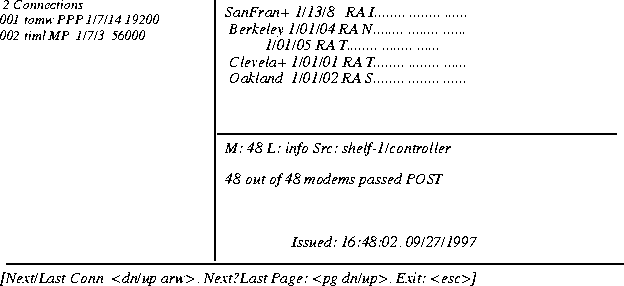
Line status information includes the following identifiers and codes:
Following are the channel-status codes:
Following are the channel-type codes:
Code |
Description |
|---|---|
T |
T1 inband signaling
|
I |
T1 PRI signaling
|
P |
NFAS Primary
|
S |
NFAS Secondary
|
N |
All other NFAS types
|
To display a prompt below the status window, press the Escape key. To scroll through the list of lines, press the Up-Arrow or Down-Arrow key, or to page up or down through the lines, press the Page Up or Page Dn key.
admin> statusSee Also: Connection, Log, Status, T1channels, View
List
Description: Lists the contents of the current or specified context in the working profile.
Listing a subprofile changes the current context to that subprofile. Specifying two periods (..)
as the command argument changes the current context back to one level higher in the working
profile ("closing" the subprofile).
Permission level: System
[..] [param-name [param-index] [sub-profile]]
Example: To make a Connection profile named Dallas the working profile:
admin> read connection dallasTo list its contents:
admin> listTo list the PPP-Options subprofile:
station*=dallas
active=yes
encapsulation-protocol=mpp
called-number-type=national
dial-number=85283
clid=""
ip-options={ yes yes 1.1.1.1/8 0.0.0.0/0 7 100 255 no no 0 0.0.0.0 rou+
session-options={ "" "" no 120 no-idle 120 "" }
telco-options={ ans-and-orig no off 1 no no 64k-clear 0 "" "" no no }
ppp-options={ ****** ****** stac 1524 no 600 600 }
mp-options={ 1 1 2 }
mpp-options={ "" quadratic transmit 1 1 15 5 10 70 }
tcp-clear-options={ "" 0 }
answer-options={ }
usrRad-options={ global 0.0.0.0 1646 "" 1 acct-base-10 }
calledNumber=""
admin> list pppTo return to the top-level context of the profile:
send-password=******
recv-password=******
enabled=yes
link-compression=stac
mru=1524
lqm=no
disconnect-on-auth-timeout=yes
lqm-minimum-period=600
lqm-maximum-period=600
admin> list ..To use the List command to display the Answer-Options subprofile:
admin> list .. answerDependencies: The List command works only on the working profile. To make an existing profile the working profile, use the Read command. When you create a new profile, it becomes the working profile automatically.
profile-required=no
ans-default=no
profile-source=no
clid-auth-mode=ignore
See Also: Dir, Get, Read, New, Set, Write
Load
Description: Uploads a code image to flash or runs a remote configuration script. The code
image or script may be located on the disk of the PC you are using for the terminal session with
the MAX TNT or on a network host that supports TFTP.
Permission level: Update
[-v] load-type [-subtype] source [device]
Syntax element |
Description |
|---|---|
-v |
Display verbose output for configuration loads.
|
load-type |
The load type:
|
load-type |
|
-subtype |
The subtype of the image:
-debug subtype, the image saved in flash has a subtype of Debug instead of Normal.
|
source |
The location from which the file will be loaded:
|
device |
The name of the flash card to load. The valid device names are:
1 and 2.
|
Example: To load a configuration file named maxtnt.cfg from a network host 10.8.7.2 to
flash-card-1:
admin> load config network 10.8.7.2 /maxtnt.cfgTo load a software update for a T1 card from the PC you are using to flash-card-2:
admin> load t1-8 console 2 tntt1.ffs
tntsr.bin from a network host
named host1:
admin> load boot-sr net host1 tntsr.bin
admin> reset
admin> slot -d 2
admin> slot -d 5
admin> slot -d 12
admin> slot -d 13
tntrel.tar file from a network host named
host1:
admin> load tar net host1 tntrel.tar
admin> reset
admin> load t1-8 net host1 tntt1.ffsIf the system terminates the process of loading a tar file, one of the following messages might appear:
load aborted: not a tar image
load aborted: a tar image, inconsistent with the specified load-type.
load aborted: invalid/unknown image header.
load aborted: mismatched image for the specified load-type.
load aborted: invalid image, unsupported by load tar command.The Load command supports type checking to verify that the load type specified on the command line matches the image header. The above messages indicate that the type checking process discovered inconsistencies between the load type and the image header. Check your command line. If necessary, download the tar file again.
The following warning message does not terminate the Load, but indicates that you are not loading the most recent software version:
load: warning: old image header version detected, load continued...See Also: Dircode, Format, Fsck, Save
Loadslave
Description: Enables you to update slave-shelf code from the master-shelf interface.
Permission level: Update
shelf [image1|image2]
When you load a binary to the master shelf controller via TFTP or a serial connection, the compressed image is stored in the high-address section of NVRAM, referred to as image2 in Figure 1-1. When you then reset the system to execute the new shelf-controller software, the system first verifies that the compressed image is good and copies it into the low-address section of memory. The copy is referred to as image1. The system then decompresses image1, loads it into memory, and boots from image1.
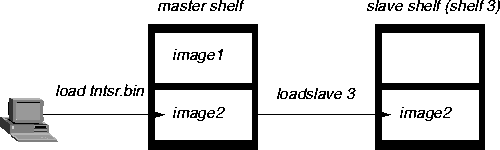
Figure 1-1. Loading new shelf-controller software
Log
Description: Specifies that the upper-right or lower-right portion of the status window (or
both) should display a message from the MAX TNT log buffer that contains the most recent
system events. If the status window is not already displayed, this command opens it with the
connection status information displayed.
The Log profile controls whether logs are sent to a Syslog host, as well as how many logs are stored in the MAX TNT buffer. The number of events stored in the log is set by the Save-Number parameter. For more information about the Log profile, see the description of the Log profile.
top|bottom
Option |
Description |
|---|---|
top |
Display the log in the upper-right portion of the status window.
|
bottom |
Display the log in the lower-right portion of the status window.
|
Example: To display the event log in the lower portion of the status window:
admin> log bottom
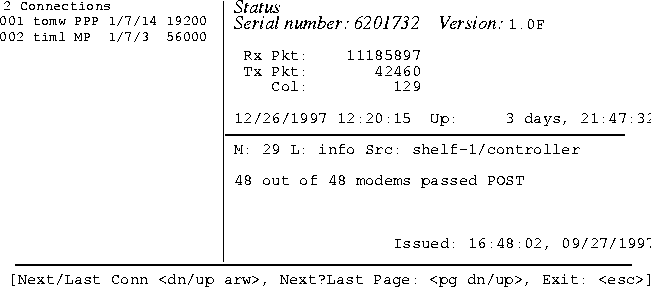
The first line of the event-log window shows the log entry number (M: 00 through M: N, where N is set in the Save-Number parameter of the Log profile), the level of message, and the device on which the event occurred. The last line shows the date and time when the event occurred.
The message levels are as follows:
The text of the most recent message is displayed in the middle of the window. You can press the Up-Arrow key to see previous messages, and return to more recent messages by pressing the Down-Arrow key.
Following are some sample warning messages:
admin> statusSee Also: Connection, Line, Status, View
Modem
Description: Displays information about digital modems in the MAX TNT. Each modem card
provides 48 modems.
Permission level: System
-a|-d|-f|-g|-i|-m|-s
Example: To display all the good modems that are available for use, use the -g option:
admin> modem -g

Non-suspect modems available for use:

                      (dvOp  dvUpSt  dvRq  sAdm  mDis)

Modem {  1 11  1 }    (Up    Idle    UP    UP    ENABLE  )

Modem {  1 11  2 }    (Up    Idle    UP    UP    ENABLE  )

Modem {  1 11  3 }    (Up    Idle    UP    UP    ENABLE  )

Modem {  1 11  4 }    (Up    Idle    UP    UP    ENABLE  )

Modem {  1 11  5 }    (Up    Idle    UP    UP    ENABLE  )

Modem {  1 11  6 }    (Up    Idle    UP    UP    ENABLE  )

Modem {  1 11  7 }    (Up    Idle    UP    UP    ENABLE  )

Modem {  1 11  8 }    (Up    Idle    UP    UP    ENABLE  )

Modem {  1 11  9 }    (Up    Idle    UP    UP    ENABLE  )

Modem {  1 11 10 }    (Up    Idle    UP    UP    ENABLE  )

Modem {  1 11 11 }    (Up    Idle    UP    UP    ENABLE  )

Modem {  1 11 12 }    (Up    Idle    UP    UP    ENABLE  )

Modem {  1 11 13 }    (Up    Idle    UP    UP    ENABLE  )

Modem {  1 11 14 }    (Up    Idle    UP    UP    ENABLE  )

Modem {  1 11 15 }    (Up    Idle    UP    UP    ENABLE  )

Modem {  1 11 16 }    (Up    Idle    UP    UP    ENABLE  )
[More? <ret>=next entry, <sp>=next page, <^C>=abort]The information displayed includes the physical address of the modem and the following status information:
Netstat
Description: Displays the MAX TNT IP interface and routing tables, protocol statistics, and
active sockets.
Permission level: System
[udp][tcp][-i][-r[host]][?][-n][-s
identifiers
]
For TCP, Netstat reports the following services:
Service |
TCP port number |
|---|---|
|
Telnet
|
23
|
|
TACACS+
|
49
|
|
Finger
|
79
|
For UDP, Netstat reports the following services:
Service |
UDP port number |
|---|---|
|
Route
|
520
|
|
Echo
|
7
|
|
NTP
|
123
|
|
SNMP
|
161
|
|
SNMPTrap
|
162
|
If the port being used is not found among these named services, it is printed as a number.
Displaying UDP and TCP statistics
To display information about UDP sockets, include the udp option with the Netstat command:
admin> netstat -n udpor
admin> netstat udpThe command output shows the queue depth of various UDP ports, as well as the total packets received and total packets dropped on each port. The total packets received count includes the total packets dropped. For the following sample output, the SNMP queue depth was set to 32:
admin> netstat -n udpThe display contains the following information:
udp:
-Socket- Local Port InQLen InQMax InQDrops Total Rx
1/c 0 1023 0 1 0 0
1/c 1 route 0 0 0 25
1/c 2 echo 0 32 0 0
1/c 3 ntp 0 32 0 1
1/c 4 1022 0 128 0 0
1/c 5 snmp 0 128 0 0
1/1 0 1 0 256 0 0
1/1 1 1018 0 128 0 0
1/3 0 3 0 256 0 0
1/3 1 1021 0 128 0 0
1/5 0 5 0 256 0 0
1/5 1 1020 0 128 0 0
1/8 0 8 0 256 0 0
1/8 1 1019 0 128 0 0
admin> netstat tcpThe display contains the following information:
tcp:
-Socket- Local Remote State
1/c 0 host1.eng.abc.finger *.* LISTEN
1/c 1 host1.eng.abc.telnet *.* LISTEN
1/c 2 host1.eng.abc.finger ridgeback.eng.abc..38040 TIME-WAIT
1/c 3 host1.eng.abc.finger ridgeback.eng.abc..38041 ESTABLISHED
1/c 4 host1.eng.abc.finger ridgeback.eng.abc..38042 ESTABLISHED
1/c 5 host1.eng.abc.finger ridgeback.eng.abc..38043 ESTABLISHED
1/c 6 host1.eng.abc.finger ridgeback.eng.abc..38044 ESTABLISHED
Column |
Description |
|---|---|
Socket |
The shelf, slot, and socket corresponding to a local TCP port. The socket number corresponds to a TCP session or the local TCP port on which the MAX TNT is listening.
|
Local |
The local IP address and port for a TCP session. For example, in the value 10.2.3.114.23, 10.2.3.114 specifies the IP address and 23 specifies the port for a TCP session. If the address portion contains only an asterisk (*), the MAX TNT is listening for the start of a TCP session.
|
Remote |
The remote IP address and port for a TCP session. For example, in the value 15.5.248.121.44581, 15.5.248.121 specifies the IP address and 44581 specifies the port for a TCP session. If the specification contains only asterisks (*.*), the MAX TNT is listening for the start of a TCP session.
|
State |
The state of the session. The possible state values are:
|
To display both UDP and TCP statistics, specify the
-n option. For example:
admin> netstat -n
udp:

-Socket-  Local Port  InQLen  InQMax    InQDrops    Total Rx

1/c    0        1023       0       1           0           0

1/c    1       route       0       0           0          25

1/c    2        echo       0      32           0           0

1/c    3         ntp       0      32           0           1

1/c    4        1022       0     128           0           0

1/c    5        snmp       0     128           0           0

1/1    0           1       0     256           0           0

1/1    1        1018       0     128           0           0

1/3    0           3       0     256           0           0

1/3    1        1021       0     128           0           0

1/5    0           5       0     256           0           0

1/5    1        1020       0     128           0           0

1/8    0           8       0     256           0           0

1/8    1        1019       0     128           0           0

tcp:

Socket  Local                     Remote                       State

1/c 0   *.23                      *.*                         LISTEN

1/c 1   10.2.3.114.23             15.5.248.121.44581     ESTABLISHED
-in option:
admin> netstat -inThe entries in the interface table associated with the MAX TNT Ethernet interfaces use the following naming convention:
ie[shelf]-[slot]-[item]For example, the following output shows a four-port Ethernet card in slot 13:
Name MTU Net/Dest Address Ipkts Ierr Opkts OerrThe columns in the interface table contain the following information:
ie0 1500 12.65.212.0/24 12.65.212.227 107219 0 54351 0
lo0 1500 127.0.0.1/32 127.0.0.1 4867 0 4867 0
rj0 1500 127.0.0.2/32 127.0.0.2 0 0 0 0
bh0 1500 127.0.0.3/32 127.0.0.3 0 0 0 0
wan4 1500 10.122.99.1 - 0 0 0 0
ie1-12-1 1500 11.168.6.0/24 11.168.6.227 430276 651 0 0
ie1-12-2 1500 10.122.72.0/24 10.122.72.1 0 0 0 3144
ie1-12-3 1500 10.122.73.0/24 10.122.73.1 0 0 3142 0
ie1-12-4 1500 10.122.74.0/24 10.122.74.1 0 0 3141 0
Column |
Description |
|---|---|
Name |
The name of the interface:
|
MTU |
(Maximum Transmission Unit) The maximum packet size allowed on the interface.
|
Net/Dest |
The network or the target host this interface can reach.
|
Address |
The address of this interface.
|
Ipkts |
The number of packets received.
|
Ierr |
The number of packets that contain errors.
|
Opkts |
The number of packets transmitted.
|
Oerr |
The number of transmitted packets that contain errors.
|
Displaying the routing table
To display the routing table, specify the -rn option. For example:
admin> netstat -rn
Destination         Gateway        IF        Flg    Pref  Metric Use
Age
0.0.0.0/0 206.65.212.1 ie0 SG 100 1 4891 48630The columns in the routing table contain the following information:
10.0.0.0/24 11.168.6.249 ie1-12-1 RGT 100 3 0 9236
10.0.100.0/24 11.168.6.86 ie1-12-1 RGT 100 2 0 48601
10.0.200.0/24 11.168.6.86 ie1-12-1 RGT 100 2 0 48601
10.122.72.0/24 - ie1-12-2 C 0 0 3141 48630
10.122.72.1/32 - lo0 CP 0 0 0 48630
10.122.73.0/24 - ie1-12-3 C 0 0 3140 48630
10.122.73.1/32 - lo0 CP 0 0 0 48630
10.122.74.1/32 - lo0 CP 0 0 0 48630
10.122.99.0/24 10.122.99.1 wan4 SG 100 7 0 48630
10.122.99.1/32 10.122.99.1 wan4 S 100 7 1 48630
127.0.0.1/32 - local CP 0 0 0 48672
127.0.0.2/32 - rj0 CP 0 0 0 48672
127.0.0.3/32 - bh0 CP 0 0 0 48672
11.0.2.0/24 11.168.6.249 ie1-12-1 RGT 100 2 0 48626
11.168.6.0/24 - ie1-12-1 C 0 0 14589 48630
11.168.6.0/24 11.168.6.116 ie1-12-1 *RGTM 100 8 0 48606
11.168.6.0/24 11.168.6.142 ie1-12-1 *RGTM 100 8 0 48610
11.168.6.0/24 11.168.6.96 ie1-12-1 *RGTM 100 8 0 48624
11.168.6.102/32 11.168.6.86 ie1-12-1 RGT 100 8 0 48601
11.168.6.115/32 11.168.6.116 ie1-12-1 RGT 100 8 0 48606
224.0.0.0/4 mcast CP 0 0 0 59593
255.255.255.255/32- ie0 CP 0 0 0 48630
Displaying protocol statistics
You can include identifiers in the command line to display IP, UDP, TCP, ICMP, IGMP, and multicast protocol statistics. The system displays TCP statistics collected from slot cards as well as the shelf controller. All other types of statistics are collected for the shelf controller only. tcp identifier:
admin> netstat -s tcpSee Also: NSlookup, Ping, Rlogin, Traceroute
tcp:
17 active opens
160 passive opens
0 connect attempts failed
9 connections were reset
4294967215 connections currently established
75620 segments received
82645 segments transmitted
313 segments retransmitted
1 active closes
1 passive closes
0 disconnects while awaiting transmission
New
Description: Creates an instance of the specified profile type and makes the new profile the
working profile. You can also use the command to assign the profile its index value. To write a
new profile, you must uniquely identify it by setting its index field. In a profile listing, a
parameter name followed by an asterisk identifies the index field.
In most cases, the profile's parameters are assigned default values. However, depending on the profile type, the index chosen might affect the factory default values set in the profile. (For details, see page 1-63.)
Permission level: System
profile-type [profile-index]
Syntax element
Description
profile-type
The type of profile you want to create. profile-index
The index value of the profile.
Profile type |
Default index |
|---|---|
|
User
|
""
|
|
Serial
|
{ any-shelf any-slot 0 }
|
|
Ethernet
|
{ any-shelf any-slot 0 }
|
|
IP-Interface
|
{ { any-shelf any-slot 0 } 0 }
|
admin> new t1 {12 2 3}

error: bad index: unknown value "12"
admin> new system fooIf you specify a valid index, it is applied to the new profile, which is read into the edit buffer. For example:
error: profile has no index
admin> new t1 {1 2 3}

T1/{ shelf-1 slot-2 3 } read
admin> listExample: To create a new Connection profile called Tim:
physical-address*={ shelf-1 slot-2 3 }
line-interface={ no d4 ami eligible middle-priority inband +
admin> new conn tim

CONNECTION/tim read
admin> list

station*=tim

active=no

encapsulation-protocol=mpp

called-number-type=national

dial-number=""

clid=""

ip-options={ yes yes 0.0.0.0/0 0.0.0.0/0 7 100 255 no no 0 0.0.0.0 rou+

session-options={ "" "" no 120 no-idle 120 "" }

telco-options={ ans-and-orig no off 1 no no 56k-restricted 0 "" "" no +

ppp-options={ "" "" stac 1524 no 600 600 }

mp-options={ 1 1 2 }

mpp-options={ "" quadratic transmit 1 1 15 5 10 70 }

tcp-clear-options={ "" 0 }

answer-options={ }

usrRad-options={ global 0.0.0.0 1646 "" 1 acct-base-10 }

calledNumber=""
admin> writeDependencies: The index you choose might affect the factory default values set in the profile. For example, if you specify the profile-index
CONNECTION/tim written
default for a User profile, the factory default
permission settings are as follows:
admin> new user default

USER/default read
admin> listIf you specify the profile-index
name*=default
password=""
active-enabled=yes
allow-termserv=no
allow-system=no
allow-diagnostic=no
allow-update=no
allow-password=no
allow-code=no
allow-debug=no
idle-logout=0
prompt=*
default-status=no
top-status=general-info
bottom-status=log-window
left-status=connection-list
use-scroll-regions=no
log-display-level=none
admin instead, the factory-default permissions are set as follows:
admin> new user admin

USER/admin read
admin> listSee Also: Delete, List, Read, Set, Write
name*=admin
password=Ascend
active-enabled=yes
allow-termserv=yes
allow-system=yes
allow-diagnostic=yes
allow-update=yes
allow-password=no
allow-code=yes
allow-debug=no
idle-logout=0
prompt=*
default-status=no
top-status=general-info
bottom-status=log-window
left-status=connection-list
use-scroll-regions=no
log-display-level=error
NSlookup
Description: Resolves the IP address of a specified hostname by performing a DNS lookup.
The IP-Global profile must be configured with the address of at least one DNS server. For
information about configuring DNS, see the MAX TNT Network Configuration Guide.
Permission level: Diagnostic
Syntax element |
Description |
|---|---|
hostname |
The hostname for which you want to obtain an IP address.
|
Example: To look up a host's IP address in DNS:
admin> nslookup host-231See Also: ARPtable, Netstat
Resolving host host-231.
IP address for host host-231 is 10.65.12.231.
NVRAM
Description: Provides functions for managing or clearing onboard nonvolatile random access
memory (NVRAM). The onboard NVRAM stores the system configuration. Clearing
NVRAM initializes the system. It comes up unconfigured, just as it was when you first
installed it. You can then restore the configuration from a recent backup. For details, see the
MAX TNT Administration Guide.
Permission level: Update
-f|-t|-u|-c|-?
Option |
Description |
|---|---|
-f |
Clear NVRAM without prompting for confirmation.
|
-t |
Toggle module debug level.
|
-u |
Display NVRAM usage statistics.
|
-c |
Compact the NVRAM storage.
|
-? |
Display a usage summary.
|
Example: To display memory usage information, specify the -u option:
admin> nvram -uYou can enter the command without any arguments to clear NVRAM and reset the unit:
NVRAM seg[0]:start 14000098 size 258040 avail 191680 cmpct 0
admin> nvramSee Also: Load, Save, Reset
Clear configuration and reboot? [y/n]
Open
Description: Each slot card has its own processor, memory, operating system, and set of
debug commands. The Open command sets up a Telnet-like session across the control bus to
one of the slot cards. Then you can execute commands on that slot card.
Permission level: Diagnostic
1..9 [1..16]
Syntax element |
Description |
|---|---|
1..9 |
The shelf number in a multishelf system.
|
1..16 |
The number of the expansion slot you want to diagnose.
|
Example: On the master shelf of a multishelf system, you might open a session with a slave shelf (for example, shelf 3) as follows:
admin> open 3You can then execute commands on the slave shelf as usual, except that you cannot use the Open command from the slave shelf. If you do execute the Open command, the following error message appears:
Can't use open command on a slave shelf.To open a session with a T1 card installed in shelf 1, slot 13:
admin> open 1 13The prompt changes to show your location, and you can list the available commands:
t1-1/13> ?
? ( user )To return to the shelf controller:
auth ( user )
cbcardif ( debug )
checkd ( debug )
clear ( user )
clock-source ( diagnostic )
debug ( diagnostic )
debugd ( debug )
display ( debug )
dp-ram-display ( debug )
dpram-test ( debug )
dspBypassClients ( debug )
dspDial ( debug )
dspSetDddTimeslot ( debug )
fe-loop ( diagnostic )
fill ( debug )
frreset ( debug )
gdb ( debug )
help ( user )
lifDebug ( debug )
logdebug ( debug )
logtest ( debug )
mibcbagt ( debug )
mibcbreq ( debug )
mibmgr ( debug )
modify ( debug )
nailedState ( debug )
nlcb ( debug )
open ( diagnostic )
pools ( debug )
priDisplay ( diagnostic )
quiesce ( debug )
quit ( user )
revision ( debug )
slots ( debug )
stackLimit ( debug )
stackUsage ( debug )
tdm ( debug )
timedMsgTest ( debug )
tntuart ( debug )
tprofmgr ( debug )
tss ( debug )
update ( debug )
version ( system )
whoami ( user )
t1-1/13> quitSee Also: Show, Slot
OSPF
Description: Displays information related to OSPF routing, including Link-State
Advertisements (LSAs), border routers' routing tables, and the OSPF areas, interfaces,
statistics, and routing table.
You use the OSPF and OSPF-Options profiles to configure OSPF routing. For information, see the description of the OSPF and OSPF-Options subprofile.
options
where options may be one or more of the following:
Option |
Description |
|---|---|
? |
Display help information.
|
areas |
Display OSPF areas.
|
border-routers |
Display OSPF border-router information.
|
database |
Display OSPF link-state database.
|
errors |
Display OSPF errors.
|
general |
Display OSPF general information.
|
interfaces |
Display OSPF interfaces.
|
neighbor |
Display OSPF neighbors.
|
rtab |
Display OSPF routing table.
|
timer-queue |
Display OSPF timer queue.
|
stats |
Display OSPF stats.
|
Displaying information about OSPF areas
To display information about OSPF areas, include the areas option with the OSPF command:
admin> ospf areas
Area ID: 0.0.0.0The output includes the following fields:
Auth Type: Simple Passwd Import ASE: On Spf Runs: 5
Local ABRs: 0 Local ASBRs: 2 Inter LSAs: 3 Inter Cksum sum: 0x22298
Displaying information about AS border routers
To display AS border-router information, include the border-routers option with the OSPF command:
admin> ospf border-routers
Displaying the link-state database
To display the router's link-state database, use the database option. For example:
admin> ospf database
                Stub Link States (Area 0.0.0.10)

Link ID           Adv Router        Age   Len   Seq#        Metric

11.57.4.254       11.57.4.254       410   24    0x0           0

10.31.114.0       10.31.114.0       410   24    0x0           0

10.31.114.254     10.31.114.254     420   24    0x0           0
Router Link States (Area 0.0.0.10)The database is segmented by the type of link as defined in RFC 1583:
Link ID Adv Router Age Len Seq# Metric
11.57.4.8 11.57.4.8 577 36 0x80000021 0
11.57.4.254 11.57.4.254 420 60 0x80000024 0
10.31.114.254 10.31.114.254 421 60 0x80000019 0
Network Link States (Area 0.0.0.10)
Link ID Adv Router Age Len Seq# Metric
11.57.4.8 11.57.4.8 421 32 0x8000000a 0
Summary Net Link States (Area 0.0.0.10)
Link ID Adv Router Age Len Seq# Metric
10.103.0.0 11.57.4.8 708 28 0x80000009 10
10.103.0.3 11.57.4.8 708 28 0x80000009 30
10.103.0.4 11.57.4.8 708 28 0x80000009 30
10.103.0.254 11.57.4.8 106 28 0x80000001 30
10.104.0.0 11.57.4.8 708 28 0x80000009 21
10.104.0.2 11.57.4.8 708 28 0x8000000c 20
10.105.0.0 11.57.4.8 243 28 0x80000003 11
10.106.0.0 11.57.4.8 254 28 0x80000001 11
10.108.0.0 11.57.4.8 256 28 0x80000001 11
10.113.0.0 11.57.4.8 710 28 0x80000003 11
10.114.0.0 11.57.4.8 710 28 0x80000009 22
10.115.0.0 11.57.4.8 236 28 0x80000001 12
10.123.0.0 11.57.4.8 710 28 0x80000009 10
10.233.0.0 11.57.4.8 287 28 0x80000001 11
10.234.0.0 11.57.4.8 287 28 0x80000001 11
10.236.0.0 11.57.4.8 287 28 0x80000001 11
101.108.0.0 11.57.4.8 256 28 0x80000001 11
10.11.57.0 11.57.4.8 108 28 0x80000001 21
10.11.57.254 11.57.4.8 118 28 0x80000001 20
201.108.0.0 11.57.4.8 256 28 0x80000001 11
Type-5 AS External Link States (Area 0.0.0.10)
Link ID Adv Router Age Len Seq# Metric
11.67.0.0 10.31.114.254 531 36 0x8000000b 1
199.199.10.0 11.57.4.254 5 36 0x80000014 1
Displaying detailed information about a route in the database
The database option includes suboptions for focusing on particular areas of the database. To display the suboptions, enter the OSPF command with the database ? arguments:
admin> ospf database ?
ospf database ? Display help informationFor example, you might focus on the network link states:
ospf database asb Display OSPF ASB summary link states
ospf database ase Display OSPF external link states
ospf database network Display OSPF network link states
ospf database router Display OSPF router link states
ospf database summary Display OSPF network summary link states
ospf database ase7 Display OSPF type-7 external link states
admin> ospf database network
Network Link States (Area 0.0.0.0)
LS Age: 1473The following example shows information about Type-7 ASE link states:
Options: No TOS-capability
Link State ID: 10.168.6.181
Advertising Router: 10.168.6.181
Sequence Number: 0x80000003
Checksum: 0x8e58
Length: 32
Network Mask: /24
Attached Router: 10.168.6.181
Attached Router: 10.168.6.148
admin> ospf database ase7


	Type-7 AS External Link States (Area 0.0.0.10)


 LS Age: 539

 Options: No TOS-capability

 Link State ID: 11.67.0.0

 Advertising Router: 10.31.114.254

 Sequence Number: 0x8000000b

 Checksum: 0x7f9f

 Length: 36

 Network Mask: /16

        Metric Type (bit E): 1

        TOS: 0

        Metric: 1

        Forwarding address: 10.31.114.254

        External Route Tag: c0000000


 LS Age: 13

 Options: No TOS-capability

 Link State ID: 199.199.10.0

 Advertising Router: 11.57.4.254

 Sequence Number: 0x80000014

 Checksum: 0x99cd

 Length: 36

 Network Mask: /24

        Metric Type (bit E): 1

        TOS: 0

        Metric: 1

        Forwarding address: 11.57.4.254

        External Route Tag: c0000000
errors option with the OSPF command. For example:
admin> ospf errors
ERRORS from: bootThe output lists all error messages related to OSPF, with each message preceded by the number of times it has been generated since the MAX TNT powered up. Immediately following the number is a field indicating one of the following packet types:
0: IP: Bad OSPF pkt type 0: IP: Bad IP Dest
0: IP: Bad IP proto id 0: IP: Pkt src=my IP addr
0: OSPF: Bad OSPF version 0: OSPF: Bad OSPF checksum
0: OSPF: Bad intf area id 0: OSPF: Area mismatch
0: OSPF: Bad virt link info 0: OSPF: Auth type != area type
0: OSPF: Auth key != area key 0: OSPF: Packet is too small
0: OSPF: Packet size > IP length 0: OSPF: Transmit bad
1: OSPF: Received on down IF 0: Hello: IF mask mismatch
0: Hello: IF hello timer mismatch 0: Hello: IF dead timer mismatch
909: Hello: Extern option mismatch 0: Hello: Nbr Id/IP addr confusion
0: Hello: Unknown Virt nbr 0: Hello: Unknown NBMA nbr
0: DD: Unknown nbr 0: DD: Nbr state low
0: DD: Nbr's rtr=my rtrid 0: DD: Extern option mismatch
17: Ack: Unknown nbr 0: Ack: Nbr state low
0: Ls Req: Nbr state low 0: Ls Req: Unknown nbr
0: Ls Req: Empty request 0: LS Req: Bad pkt
0: LS Update: Nbr state low 21: Ls Update: Unknown nbr
0: Ls Update: Newer self-gen LSA 0: Ls Update: Bad LS chksum
5: Ls Update: less recent rx 0: Ls Update: Unknown type
IP-IP packets.
OSPF-OSPF packets.
Hello-Hello packets.
DD-Database Description packets, which are exchanged periodically between neighbors.
Ack-Every DD packet must be acknowledged.
LS Req-Link-state request (a request for an updated database).
LS Update-An exchange to update databases.
general option with the OSPF command:
admin> ospf generalOr, you can simply enter the OSPF command without any arguments. For example:
admin> ospf
Rtr ID: 10.168.6.148In either case, the output contains the following fields:
Status: Enabled Version: 2 ABR: Off ASBR: On
LS ASE Count: 4 ASE Cksum sum: Ox241b3 Tos Support: TOS 0 Only
New LSA Originate Count: 17 Rx New LSA Count: 9
Displaying OSPF interfaces
To display the OSPF interfaces, include the interfaces option with the OSPF command:
admin> ospf interfacesThe output contains the following fields:
Area IP Address Remote Addr Type State Cost Pri DR BDR
----------------------------------------------------------------------
0.0.0.0 10.2.6.4 10.2.6.4 Bcast BackupDR 1 5 10.2.6.8 10.2.6.4
Displaying OSPF neighbors
To display adjacencies, include the neighbor option with the OSPF command. For example:
admin> ospf neighborThe output contains the following fields:
Area Interface Router Id Nbr IP Addr State Mode Pri
0.0.0.0 10.168.6.148 10.168.6.181 10.168.6.181 Full Slave 5
Displaying the OSPF routing table
To display the OSPF routing table, include the rtab option with the OSPF command. For example:
admin> ospf rtab
Dest Area Cost E Path Nexthop AdvRtr LThe routing table is segmented by the type of route. Each segment contains the following fields:
AS Border Routes:
10.168.6.181 0.0.0.0 1 RTR 10.168.6.181 10.168.6.181
10.168.6.148 0.0.0.0 0 RTR 0.0.0.0 10.168.6.148
Nets: Rtab Version 5
0.0.0.0/0 0.0.0.0 2 0 EXT 10.168.6.181 10.168.6.181 0
8.0.0.0/8 imported: 2
10.168.6.0/24 0.0.0.0 1 0 INT 10.168.6.148 10.168.6.181 1
10.168.6.152/32 imported: 2
Displaying the timer queue
To display information about the timer queue, include the timer-queue option with the OSPF command. For example:
admin> ospf timer-queue
Current Timerq:
Type Minutes Seconds Area Intf
-----------------------------------------------------------
LOG alert, Shelf 1, Controller, Time: 10:38:05--
Protection violation: ind = 00010000 addrType = 00001000 at 00000000
102b355c 10322228 10322424 102220c4 1023830c
TQAck              0       1 No Area       0.0.0.0

TQRetrans          0       5 No Area       192.168.8.25

TQLsaLock          0       5 0.0.0.0       No Intf

TQHelloTimer       0       5 No Area       192.168.8.25

TQAse7LsdbAge      0       17 No Area      No Intf

TQAseLsdbAge       0       41 No Area      No Intf

TQIntLsdbAge       2       35 No Area      No Intf

TQSumLsdbAge       3       12 No Area      No Intf

TQIntLsa           5       54 No Area      No Intf

TQAse7Lsa         12       48 No Area      No Intf

TQAseLsa          12       48 No Area      No Intf
stats option with the OSPF command. For example:
admin> ospf stats
IO stats from:                       boot

>> RECEIVED:

       0: Monitor request

     481: Hello

       2: DB Description

       0: Link-State Req

       8: Link-State Update

       8: Link-State Ack

>> SENT:

     482: Hello

       3: DB Description

       2: Link-State Req

      11: Link-State Update

       8: Link-State Ack
Ping
Description: Sends ICMP echo_request packets to the specified host as a way to verify that
the host is up and the transmission path to the host is open. The host returns ICMP
echo_response packets, and the command generates statistics about the exchange.
Permission level: Diagnostic
[-q|-v][-c count][-i delay][-s packetsize] hostname
Example: Pinging a host named Host-231 on a local network:
admin> ping host-231Press Ctrl-C to stop. To exchange only 3 packets, each of which contains only 16 bytes:
PING host-231 (10.65.12.231): 56 data bytes
64 bytes from 10.65.12.231: icmp_seq=0 ttl=255 time=0 ms
64 bytes from 10.65.12.231: icmp_seq=1 ttl=255 time=0 ms
64 bytes from 10.65.12.231: icmp_seq=2 ttl=255 time=0 ms
64 bytes from 10.65.12.231: icmp_seq=3 ttl=255 time=0 ms
64 bytes from 10.65.12.231: icmp_seq=4 ttl=255 time=0 ms
^C
--- host-231 ping statistics ---
5 packets transmitted, 5 packets received, 0% packet loss
round-trip min/avg/max=0/0/0 ms
admin> ping -c 3 -s 16 host-231To exchange 3 packets and suppress the output for each exchange:
PING host-231 (10.65.12.231): 8 data bytes
16 bytes from 10.65.12.231: icmp_seq=0 ttl=255 time=0 ms
16 bytes from 10.65.12.231: icmp_seq=1 ttl=255 time=0 ms
16 bytes from 10.65.12.231: icmp_seq=2 ttl=255 time=0 ms
--- host-231 ping statistics ---
3 packets transmitted, 3 packets received, 0% packet loss
round-trip min/avg/max=0/0/0 ms
admin> ping -c3 -q host-231See Also: Netstat Rlogin, Telnet, Terminal-Server, Traceroute
PING host-231 (10.65.12.231): 56 data bytes
--- host-231 ping statistics ---
3 packets transmitted, 3 packets received, 0% packet loss
round-trip min/avg/max=0/0/0 ms
Power
Description: Checks the status of the MAX TNT redundant power supplies and displays the
results.
Permission level: System
Example: To check the power supply:
admin> power

Power supply A present, OK

Power supply B not present
PRIdisplay
Description: For a T1, E1, or T3 card, displays general PRI messages, shows a timestamp
relative to the time the card booted, and identifies PRI messages that have bad CRCs or are too
long.
You can use PRIdisplay on a T1, E1, or T3 card only. You must first execute the Open command to open a session with the card.
octets [line]
Example: To open a session with a T3 card in shelf 1, slot 15, and then display the first 160 bytes of PRI messages:
admin> open 1 15
t3-1/15> pridisplay 160In the following example, the first command displays the first 32 bytes of PRI messages for line 12 only. The second command enables display of the first 32 bytes of messages for any line on the card, and the third command turns off the message display:
Display the first 160 bytes of PRI messages
PRI-XMIT-24: 01:38:53: 3 of 3 octets
1010A850: 00 01 7f ...
PRI-RCV-24: 01:38:55: 3 of 3 octets
10112C10: 00 01 7f ...
PRI-RBAD-22: 01:38:53: 2 of 2 octets
1010A850: 00 01
t3-1/15> prid 32 12

Display the first 32 bytes of PRI messages for line 12
t3-1/15> prid 32 0

Display the first 32 bytes of PRI messages
t3-1/15> prid 0To close the session with the card and return to the shelf controller:
PRI message display terminated
t3-1/15> quit

admin>
Quiesce
Description: Allows you to Busy Out or take Out Of Service (OOS) individual ISDN T1 PRI
lines or channels connected to the MAX TNT. These actions are known as quiescing the line or
channel to make it available for maintenance. Quiescing the line does not tear down calls that
are currently active on the line. When an active call disconnects, that channel is taken OOS.
Quiescing a line is equivalent to setting the Maintenance-State parameter in the T1 profile to Yes. Unquiescing the line sets the parameter to No. When the parameter is set to Yes, individual channels on that line cannot be restored. See Chapter 2, MAX TNT Profile and Parameter Reference. This setting is preserved across power ups.
Whether the command takes a channel or line out of service or busies it out depends on the type of switch.
Permission level: System
-d|-e|-r line|-q line|-t
Example: To quiesce a T1 PRI line in port 4 of a card installed in shelf 1, slot 2:
admin> quiesce -q {1 2 4}

QUIESCE: line 1/2/4, enable=T, isPri=T
Dependencies: The specified T1 line must be enabled and configured for ISDN PRI.
See Also: Chapter 2, MAX TNT Profile and Parameter Reference
Quit
Description: Terminates the current Telnet session.
Permission level: User
Example: To terminate the current Telnet session:
admin> quit

Connection closed by foreign host.

my-station%
Read
Description: Reads a copy of the specified profile into the edit buffer, making it the working
profile. If the profile is one of a kind, such as the IP-Global profile, it has no index field. If an
index field exists for a profile, it must be specified on the command line.
Permission level: System
read profile-type [profile-index]
Example: To find the right index for an IP-Interface profile, read that profile, and list its contents:
admin> dir ip-interface

66  12/20/1997 14:02:02  { { shelf-1 slot-12 1 } 0 }

66  12/27/1997 16:34:40  { { shelf-1 slot-12 2 } 0 }

66  12/27/1997 16:34:47  { { shelf-1 slot-12 3 } 0 }

66  12/27/1997 16:34:54  { { shelf-1 slot-12 4 } 0 }

66  12/28/1997 00:21:06  { { shelf-1 controller 1 } 0 }
admin> read ip-int {{1 c 1} 0}

IP-INTERFACE/{ { shelf-1 controller 1 } 0 } read
admin> listThe profile remains in the edit buffer until another Read command or a New command overwrites the buffer. The Set command modifies the profile. The Write command saves changes without clearing the buffer.
interface-address*={ { shelf-1 controller 1 } 0 }
ip-address=10.6.212.227/24
rip-mode=routing-send-and-recv
ospf={ no 0.0.0.0 normal 10 10 40 5 simple ******* 1 16777215 type-1 +
multicast-allowed=no
multicast-rate-limit=100
rip2-use-multicast=yes
admin> set multicast-allowed=yes
admin> writeThe working profile is represented by a period character. Even after you have used the Get command to display other profiles, or have executed other commands, you can still use the Get command to display the working profile:
IP-INTERFACE/{ { shelf-1 controller 1 } 0 } written
admin> get .See Also: Get, List, New, Set, Write
interface-address*={ { shelf-1 controller 1 } 0 }
ip-address=10.6.212.227/24
rip-mode=routing-send-and-recv
ospf={ no 0.0.0.0 normal 10 10 40 5 simple ******* 1 16777215 type-1 +
multicast-allowed=yes
multicast-rate-limit=100
Refresh
Description: Opens a connection to a RADIUS server and retrieves the latest configuration
information. See the MAX TNT RADIUS Guide.
Permission level: System
-a|-n|-p|-r|-t
Example: RADIUS profiles can support up to 50 IP address pools. To refresh the address pool configuration on the MAX TNT:
admin> refresh -p
Refreshing remote config.
Reset
Description: Resets the MAX TNT. When you reset the unit, it restarts, and all active
connections are terminated. All users are logged out and the default security level is
reactivated. In addition, a system reset can cause a WAN line to temporarily be shut down due
to momentary loss of signaling or framing information. After a reset, the MAX TNT runs
POST (power-on self tests).
Permission level: Update
[-f]
-a
[
]
Example: To reset the unit:
admin> resetSee Also: NVRAM
Rlogin
Description: Opens a login session across the network with the specified host. The Rlogin
command is supported only on the modem and HDLC cards. You must first execute the Open
command to open a session with the card.
Permission level: Diagnostic
[-l user][-ec] hostname
Example: Logging in across a network to a host named Host-231:
admin> open 1 7
modem-1/7> rlogin host-231You can log out of the remote host by typing the escape sequence (tilde-dot). For example:
Password:
Last login: Wed Dec 18 10:31:36 from marcel.marceau
SunOS Release 4.1.4 (HOST-231-BQE) #1: Wed Sep 4 08:56:59 PDT 1997
host-231%
host-231% ~.Or, you can log out explicitly:
Connection closed.
host-231% logoutIf your user name is different on the MAX TNT and the remote host, you can specify a user name on the Rlogin command line. For example:
Connection closed.
modem-1/7> rlogin -l marcel host-231If you wish, you can change the default escape character from a tilde to any other character.
Password:
See Also: Netstat, Ping, Telnet, Terminal-Server
Save
Description: Saves configuration information to a file. The file may reside either on the hard
disk of the PC you are using to issue commands to the MAX TNT or on a networked host. The
file is saved in a format that can be loaded into the MAX TNT to restore a configuration. The
Save command uses TFTP to transfer the configuration across the network. To save the MAX
TNT configuration on a remote host, you must have the necessary permissions in the directory.
Permission level: Update
[-a|-m] target [profile-type [profile-index]]
Example: Saving all Connection profiles to a file on a PC's hard disk (after starting the capture utility in the VT100 emulation software):
admin> save console connectionTo save the file, stop the capture in the VT100 emulation software. To save the entire configuration to hard disk, start the capture utility and specify the
; saving profiles of type CONNECTION
; profile saved Thu Jan 2 13:02:54 1997
new CONNECTION dallas
set active=yes
set ip-options remote-address=10.122.99.1/24
write -f
;
; profile saved Thu Jan 2 13:02:54 1997
new CONNECTION chicago
set active=yes
set dial-number=999
set ip-options remote-address=10.168.6.57/24
set ip-options routing-metric=2
set ppp-options send-auth-mode=chap-ppp-auth
set ppp-options send-password=********
set ppp-options recv-password=********
set mp-options base-channel-count=6
set mp-options minimum-channels=6
set mp-options maximum-channels=20
write -f
;
console option:
admin> save consoleAll configured profiles and parameters scroll to the capture buffer. When the entire configuration has been displayed, the following output appears:
; saving all profiles
...
;To save the file, stop the capture. The following example shows how to save a specific profile to a file on a network host:
;
; all profiles saved
admin> save network host-231 /users/marcel/ipglobal ip-gThe following example shows how to specify a profile type by its internal number when saving:
configuration being saved to 10.65.12.231
file /users/marcel/ipglobal...save
admin>
admin> save -m console system

; saving profiles of type SYSTEM

; profile saved Sat Mar 29 13:29:42 1997

new 3

set 1=1

set 2=eng-lab-43

write -f
SDSLlines
Description: Displays SDSL channel information.
Permission level: System
-a|-d|-f|-u
Option
Description
-a
Display all available channels. -d
Display the disabled channels. -f
Display all possible channels. -u
Display in-use channels.
Example: To display all SDSL channels available, use the -a option:
admin> sdsllines -aAll SDSL lines:
The data displayed includes the physical address and channel number, and the following status information about each channel:
Set
Description: Sets a parameter's value or displays help text for a parameter in the current or
specified context of the working profile. To save the new setting, you must write the working
profile.
Permission level: System
[param-index] [subprofile]=value|?
Example: Enter the following commands to display help about a T1 line's physical address:
admin> read t1 {1 2 1}

T1/{ shelf-1 slot-2 1 } read
admin> list

physical-address*={ shelf-1 slot-2 1 }

line-interface={ no d4 ami eligible middle-priority inband wink-start+
admin> set physical-address slot ?The following example shows how to open the Line-Interface subprofile and set the phone number for channel 1:
slot: The number of the slot that the addressed physical device resides on. Enumerated field, values:
any-slot: Special value used to specify 'any' slot.
slot-1: Slot 1.
slot-2: Slot 2.
slot-3: Slot 3.
slot-4: Slot 4.
slot-5: Slot 5.
slot-6: Slot 6.
slot-7: Slot 7.
slot-8: Slot 8.
slot-9: Slot 9.
slot-10: Slot 10.
slot-11: Slot 11.
slot-12: Slot 12.
slot-13: Slot 13.
slot-14: Slot 14.
slot-15: Slot 15.
slot-16: Slot 16.
controller: The shelf-controller pseudo-slot.
admin> list line

enabled=no

frame-type=d4

encoding=ami

clock-source=eligible

clock-priority=middle-priority

signaling-mode=inband

robbed-bit-mode=wink-start

switch-type=att-pri

nfas-id=0

call-by-call=0

data-sense=normal

idle-mode=flag-idle

FDL=none

front-end-type=dsx

DSX-line-length=1-133

CSU-build-out=0-db

channel-config=[{ switched-channel 9 "" { any-shelf any-slot 0 } 0 } +

maintenance-state=no
admin> set channel 1 phone=5551212
admin> writeSee Also: List, New, Read, Write
T1/{ shelf-1 slot-2 1 } written
Show
Description: Displays information about installed slot cards and their status, including slot 17
(the controller) on slave shelves.
Permission level: System
shelf-number [slot-number [item-number]]
Example: To display all installed expansion modules on shelf 1:
admin> show 1The output includes the address of each slot in which an expansion slot card is installed, the status of the card, and the type of card installed. The status can be one of the following:
{ shelf-1 slot-1 0 } UP 8t1-card
{ shelf-1 slot-11 0 } UP 48modem-56k-card
{ shelf-1 slot-12 } OCCUPIED
{ shelf-1 slot-14 0 } UP 48modem-card
{ shelf-1 slot-15 } OCCUPIED
The following example shows how to display information about the HDLC card in slot 3:
admin> show 1 3On the master shelf, the Show command output includes slave shelf controllers that are Up. For example:
{ shelf-1 slot-3 0 } RESET 192hdlc-card:
{ shelf-1 slot-3 1 } hdlc-1
{ shelf-1 slot-3 2 } hdlc-2
{ shelf-1 slot-3 3 } hdlc-3
{ shelf-1 slot-3 4 } hdlc-4
{ shelf-1 slot-3 5 } hdlc-5
{ shelf-1 slot-3 6 } hdlc-6
admin> show 1Dependencies: You cannot change the state of a slave shelf controller by using the Slot -u or Slot -d commands. If you do attempt to bring the slave shelf up or down by using one of these commands, the following error message appears:
Shelf 1 ( master ):
{ shelf-1 slot-1 0 } UP 8t1-card
{ shelf-1 slot-4 0 } UP 128hdlc-card
{ shelf-3 slot-1 0 } UP 128hdlc-card
{ shelf-3 slot-2 0 } UP 4ether-card
{ shelf-3 slot-3 0 } UP 8t1-card
{ shelf-3 slot-4 0 } UP 48modem-56k-card
{ shelf-3 slot-5 } OCCUPIED
{ shelf-3 controller 0 } UP shelf-controller
can't force slot 3/17 state changeSee Also: Device, HDLC, Modem, Slot, T1channels
Slot
Description: Changes the administrative state of a slot card, forcing a state change (up or
down). The down state allows temporary removal of a card without the loss of its
configuration.
Permission level: Diagnostic
-u|-d|-r|-t|-b|? [shelf-number] slot-number]
Example: To bring up the expansion module in slot 5:
admin> slot -u 5In the next example, a card has been removed, as indicated by a status of NONE in the output of the Show command:
slot 1/5 state change forced
admin> show 1 13The NONE status indicates that the card was removed but that its profiles have been saved. The MAX TNT remembers that a card was in that slot and saves its profiles until a card of a different type is installed in the same slot, or until you delete the profile:
Shelf 1 ( standalone ):
{ shelf-1 slot-13 0 } NONE 8t1-card:
{ shelf-1 slot-13 1 } t1-line-1
{ shelf-1 slot-13 2 } t1-line-2
{ shelf-1 slot-13 3 } t1-line-3
{ shelf-1 slot-13 4 } t1-line-4
{ shelf-1 slot-13 5 } t1-line-5
{ shelf-1 slot-13 6 } t1-line-6
{ shelf-1 slot-13 7 } t1-line-7
{ shelf-1 slot-13 8 } t1-line-8
admin> slot -r 13Either action deletes all the old profiles associated with the slot. When you insert a different type of card, the system creates appropriate new profiles.
slot 1/13 removed
See Also: Device, HDLC, Open, Modem, Show, T1channels
Status
Description: Displays the status windows. You can configure the content of the windows to
show connection, line, or log-message information. For detailed information, see the MAX
TNT Administration Guide.
Permission level: System
[on|off]
Syntax element |
Description |
|---|---|
on |
Display the status windows.
|
off |
Hide the status windows.
|
Example: To display status windows:
admin> statusOr,
admin> status on

To hide the windows:
admin> statusOr,
admin> status offSee Also: Connection, Line, Log, View
SWANlines
Description: Displays all SWAN lines, including disabled, busy, and unused channels.
Permission level: System
-a|-d|-f|-u
 Option

 Description

-a


 Display all channels.

-d


 Display all disabled channels.

-f


 Display all free channels.

-u


 Display in-use channels.
Example: To display all SWAN channels:
admin> swanlines -a
All SWAN lines:The output contains the following fields:
(OperState UpStatus ReqState AdminState)
Line { 1 14 1 } (Down Idle UP UP )
Line { 1 14 2 } (Down Idle UP UP )
Line { 1 14 3 } (Down Idle UP UP )
Line { 1 14 4 } (Down Idle UP UP )
Line { 1 14 5 } (Down Idle UP UP )
Line { 1 14 6 } (Down Idle UP UP )
Field |
Description |
|---|---|
OperState |
The current operational state of the channel:
|
UpStatus |
The status of a channel in normal operations mode:
|
ReqState |
The required state of the channel as specified by the Reqd-State setting:
|
AdminState |
The desired administrative state of the channel:
|
T1channels
Description: Displays administrative information about T1 channels.
Permission level: System
-a|-c|-d|-i
The T1channels command displays the following information
Example: Include the -a option with the T1channels command to display information about
all available T1 channels:
admin> t1 -aIf you suspect that some channels might be disabled, you can use the
T1 channels available for use:
(dvOp dvUpSt dvRq sAdm)
Channel { { 1 13 1 } 1 } (UP Idle UP UP )
Channel { { 1 13 1 } 2 } (UP Idle UP UP )
Channel { { 1 13 1 } 3 } (UP Idle UP UP )
Channel { { 1 13 1 } 4 } (UP Idle UP UP )
Channel { { 1 13 1 } 5 } (UP Idle UP UP )
Channel { { 1 13 1 } 6 } (UP Idle UP UP )
Channel { { 1 13 1 } 7 } (UP Idle UP UP )
Channel { { 1 13 1 } 8 } (UP Idle UP UP )
Channel { { 1 13 1 } 9 } (UP Idle UP UP )
Channel { { 1 13 1 } 10 } (UP Idle UP UP )
Channel { { 1 13 1 } 11 } (UP Idle UP UP )
-d option to list any disabled channels. For example:
admin> t1 -dThe following example shows how to display all T1 channels known to the system:
Disabled T1 channels:
(dvOp dvUpSt dvRq sAdm)
Channel { { 1 13 1 } 12 } (Down Idle UP UP )
Channel { { 1 13 1 } 13 } (Down Idle UP UP )
Channel { { 1 13 1 } 14 } (Down Idle UP UP )
admin> t1 -cThe
All T1 channels:
(dvOp dvUpSt dvRq sAdm)
Channel { { 1 13 1 } 1 } (UP Idle UP UP )
Channel { { 1 13 1 } 2 } (UP Idle UP UP )
Channel { { 1 13 1 } 3 } (UP Idle UP UP )
Channel { { 1 13 1 } 4 } (UP Idle UP UP )
Channel { { 1 13 1 } 5 } (UP Idle UP UP )
Channel { { 1 13 1 } 6 } (UP Idle UP UP )
Channel { { 1 13 1 } 7 } (UP Idle UP UP )
Channel { { 1 13 1 } 8 } (UP Idle UP UP )
Channel { { 1 13 1 } 9 } (UP Idle UP UP )
Channel { { 1 13 1 } 10 } (UP Idle UP UP )
Channel { { 1 13 1 } 11 } (UP Idle UP UP )
Channel { { 1 13 1 } 12 } (Down Idle UP UP )
Channel { { 1 13 1 } 13 } (Down Idle UP UP )
Channel { { 1 13 1 } 14 } (Down Idle UP UP )
[More? <ret>=next entry, <sp>=next page, <^C>=abort]
-i option displays information about which T1 channels are in use. For example:
admin> t1 -iSee Also: Line, Show, Slot
T1 channels allocated/in-use:
(dvOp dvUpSt dvRq sAdm)
Channel { { 1 13 1 } 15 } (UP Busy UP UP )
Channel { { 1 13 1 } 16 } (UP Busy UP UP )
Channel { { 1 13 1 } 17 } (UP Busy UP UP )
Channel { { 1 13 1 } 18 } (UP Busy UP UP )
Channel { { 1 13 1 } 19 } (UP Busy UP UP )
Channel { { 1 13 1 } 20 } (UP Busy UP UP )
Channel { { 1 13 1 } 21 } (UP Busy UP UP )
T1-Stats
Description: Reports DS1-level line errors on a T1 or T3 card. You must first execute the
Open command to open a session with the card.
Permission level: Diagnostic
[-c] line
Syntax element |
Description |
|---|---|
-c |
Reset statistics to 0 (zero) after displaying them.
|
line |
Line on the card.
|
Example: To open a session with a card in shelf 1, slot 13:
admin> open 1 13Then, to display DS1-level statistics for the first line on the card:
t1-1/13> t1-stats 1Finally, to display statistics for line 2, and reset the statistics to zero:
Line 1:
CRC Errors: 0
Frame Slips: 8
Framing Bit Errors: 0
Out of Frame Events: 0
Line Code Violations: 0
t1-1/13> t1-stats -c 2The output contains the following fields:
Line 2:
CRC Errors: 2
Frame Slips: 3
Framing Bit Errors: 0
Out of Frame Events: 0
Line Code Violations: 3
Statistics cleared.
Telnet
Description: Opens a Telnet session across the network to the specified host.
Permission level: Diagnostic
[-a|-b|-t] [-l[e]|-r[e]] hostname [portnumber]
Example: To open a Telnet session to Host-231:
admin> telnet host-231You can also open a session after starting the Telnet program. To display the available commands:
Connecting to host-231 (10.65.12.231)...
Escape character is '^]'
Connected
admin> telnet


telnet> ?

?                   Displays this information.

help                   "     "          "

open                Connect to a site.

quit                Quit Telnet.

close               Close current Telnet connection.

send                Send Telnet command. Type 'send ?' for help.

set                 Set special char. Type 'set ?' for help.
Terminal-Server
Description: Starts terminal-server mode, which has its own command interface.
Permission level: Termserv
Example: To enter terminal-server mode and display the list of available commands:
admin> terminal-serverTo exit terminal server mode:
** Ascend TNT Terminal Server **
ascend% ?
? Display help information
help " " "
quit Closes terminal server session
hangup " " " "
local Go to local mode
remote remote <station>
set Set various items. Type 'set ?' for help
show Show various tables. Type 'show ?' for help
iproute Manage IP routes. Type 'iproute ?' for help
telnet telnet [-a|-b|-t] <host-name> [<port-number>]
tcp tcp <host-name> <port-number>
ping ping <host-name>
traceroute Trace route to host. Type 'traceroute -?' for help
rlogin rlogin [-l user -ec] <host-name>
ascend% quit
admin>See Also: Ping, Rlogin, Telnet
TNTMP
Description: Displays information about MP and MP+ bundles and their channels. You can
execute the TNTMP command on the shelf controller or on an HDLC card. You must first
execute the Open command to open a session with the card.
Permission level: Debug
Example: To display information about MP and MP+ bundles and their channels:
admin> tntmp -iThis command works on HDLC cards as well. First, open a session with HDLC card, and then execute the TNTMP command. For example:
mpBundleID=13 masterSlot=1/15 masterMpID=2 ifCount=2 rtIf=1/17:6
routeID slot ifNum localIfNum localMpID
32 1/15 1 1 2
33 9/ 2 193 1 2
admin> open 1 15
hdlc-1/15> tntmp -iIn this example, the output shows a two-channel MP or MP+ bundle, with the first channel in slot 1/15 and the second (slave) channel in slot 9/2. The command displays the following information:
mpBundleID=13 masterSlot=1/15 masterMpID=2 ifCount=2 rtIf=1/17:6
routeID slot ifNum localIfNum localMpID
32 1/15 1 1 2
33 9/ 2 193 1 2
Traceroute
Description: Traces the route an IP packet follows by launching UDP probe packets with a
low TTL (Time-To-Live) value and then listening for an ICMP time exceeded reply from a
router. Probes start with a TTL of one and increase by one until either a probe packet reaches
the destination host or the TTL reaches the maximum.
Three probes are sent at each TTL setting. The second line of command output shows the address of the router and round-trip time of each probe. If the probe answers come from different gateways, the address of each responding system is printed. If there is no response within a 3-second timeout interval, the command output is an asterisk.
port unreachable message. [-n] [-v] [-m max_ttl] [-p port] [-q nqueries] w waittime
[-] [-s src_IPaddr] hostname [datasize]
Example: To trace the route to Host-231:
admin> traceroute host-231To perform the same trace, but with a maximum TTL of 60 hops:
traceroute to host-231 (10.65.12.231), 30 hops max, 0 byte packets
1 host-231.abc.com (10.65.12.231) 0 ms 0 ms 0 ms
admin> traceroute -m 60 host-231The following annotations can appear after the time field:
traceroute to host-231 (10.65.12.231), 60 hops max, 0 byte packets
1 host-231.abc.com (10.65.12.231) 0 ms 0 ms 0 ms
Uptime
Description: Reports how long the system has been up and how long individual cards have
been up.
Permission level: System
[[-a]|[[shelf] slot ]]
Example: At 1:26:39 p.m., the modem card in slot 2 has been up for five minutes and 53 seconds:
admin> uptime 1 2The following example shows the uptime for all slot cards in the Up state. (Cards that are not in the Up state are not reported.)
13:26:39 { shelf-1 slot-2 } 48modem-card 0000 days 00:05:53
admin> uptime -a

13:26:54

{ shelf-1 slot-1 }                  8t1-card    0 days 00:07:04

{ shelf-1 slot-2 }              48modem-card    0 days 00:06:00

{ shelf-1 slot-4 }              192hdlc-card    0 days 00:05:20

{ shelf-1 slot-5 }               4ether-card    0 days 00:06:38
slotLastChange OBJECT-TYPEThe
SYNTAX TimeTicks
ACCESS read-only
STATUS mandatory
DESCRIPTION "The value of sysUpTime at the time the TNT slot card
entered its current state. For non-TNT systems 0 is
always reported."
::= { slotEntry 9 }
slotLastChange variable reports the value of sysUpTime at the time the slot card entered its current state.
Userstat
Description: Displays user session status.
Permission level: System
[-s|-l|-d|-k sessionid]
Example: To display user session status:
admin> userstatThe output contains the following fields:
SessionID Line/Chan Slot:Item Tx/Rx Rate Svc Address Username
228687860 1.01.02/01 1:03:01/01 56K/56K PPP 10.100.0.1 barney
228687861 1.02.03/02 1:04:02/00 28800/33600 PPP 10.168.6.24 jake
<end user list> 2 active user(s)
admin> userstat

SessionID  Line/Chan  Slot:Item   Rate  Svc Address         Username

246986325  1.01.02/01 1:13:01/000 33600 PPP 100.100.8.2     100.100.8.2

<end user list>  1 active user(s)
admin> userstat -k 246986325

Session 246986325 cleared
Version
Description: Displays the current system software version.
Permission level: System
Example: To display the current system software version:
admin> version
Software version 1.2
View
Description: Changes the information displayed in the top or bottom status window.
Permission level: System
Example: To display session information:
admin> view left sessionThe left window position changes to show session information:
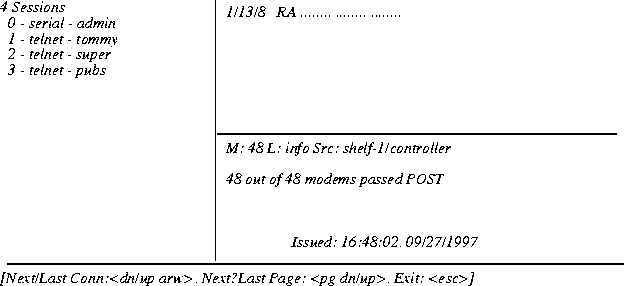
See Also: Connection, Line, Log, Status
WANdisplay
Description: Shows all WAN data as it is received and transmitted for each session. This
information can be very helpful in troubleshooting PPP negotiation problems.
If your MAX TNT has several simultaneous active connections, WANdisplay might not be the most efficient command, because the MAX TNT displays all traffic from all connections in a constant stream. You might prefer to use WANdsess or WANopening, depending on the types of data you are interested in gathering.
octets
The octets value specifies the maximum number of octets to display per packet. If you specify 0 (zero), the MAX TNT does not log WAN data.
admin> open 1 7
modem-1/7> wandisplay

Display the first 24 bytes of WAN messages

RECV-272:: 1 octets @ 5E138F74

  [0000]: 0D

RECV-272:: 13 octets @ 5E13958C

  [0000]: 0A 41 63 63 65 70 74 3A 20 69 6D 61 67
XMIT-276:: 1011 octets @ 2E12D8A4Note that the bytes are displayed in hexadecimal format.
[0000]: 7E 21 45 00 03 EE 54 2B 40 00 37 06 BA 09 CF 2B
[0010]: 00 86 D0 93 91 90 1A 0A
See Also: WANdsess, WANopening
WANdsess
Description: Shows WAN data as it is received and transmitted for a particular user. The
WANdsess command is very similar to the WANdisplay command, but when you use
WANdsess, the MAX TNT displays only incoming and outgoing packets for a specific user.
WANdsess is particularly helpful on a MAX TNT with several simultaneous active
connections. The command acts as a filter, allowing you to focus your troubleshooting.
Use the WANdsess command with host cards only. You must first execute the Open command to open a session with the modem or HDLC card.
Example: To open a session with a modem card, and activate the display of WAN data for Tim's sessions:
admin> open 1 7
modem-1/7> wandsess timNote that the bytes are displayed in hexadecimal format.
RECV-tim:300:: 1 octets @ 3E13403C
[0000]: 7E 21 45 00 00 3E 15 00 00 00 20 7D 31 C2 D2
RECV-tim:300:: 15 octets @ 3E133A24
[0000]: D0 7D B3 7D B1 B3 D0 7D B3 90 02 04 03 00 35
XMIT-tim:300:: 84 octets @ 3E12D28C
[0000]: 7E 21 45 00 00 4E C4 63 00 00 1C 7D 31 17 5F D0
[0010]: 93 90 02 D0 93 91 B3 00
See Also: WANdisplay, WANopening
WANopening
Description: Shows WAN data as it is received and transmitted during connection
establishment for all users. The WANopening command is particularly helpful for
troubleshooting connection problems in which users make the initial connection, but are
disconnected within a few seconds. The output of WANopening is very similar to the output of
WANdisplay, but WANopening only shows packets to the point at which the connection has
been completely negotiated.
Use the WANopening command with host cards only. You must first execute the Open command to open a session with the modem or HDLC card.
The octets value specifies the maximum number of octets to display per packet. If you specify 0 (zero), the MAX TNT does not log WAN data.
admin> open 1 7
modem-1/7> wanopening

Display the first 24 bytes of WAN messages

RECV-272:: 1 octets @ 5E138F74

  [0000]: 0D

RECV-272:: 13 octets @ 5E13958C

  [0000]: 0A 41 63 63 65 70 74 3A 20 69 6D 61 67
XMIT-276:: 1011 octets @ 2E12D8A4Note that the bytes are displayed in hexadecimal format.
[0000]: 7E 21 45 00 03 EE 54 2B 40 00 37 06 BA 09 CF 2B
[0010]: 00 86 D0 93 91 90 1A 0A
See Also: WANdisplay, WANdsess
Whoami
Description: Displays the name of the User profile associated with the current session.
Permission level: User
Example: To display the name of your User profile:
admin> whoami
tommySee Also: Auth
Write
Description: Validates the settings of the working profile and then writes it from the edit
buffer to NVRAM.
Permission level: Update
[-f]
Syntax element |
Description |
|---|---|
-f |
Force the write without prompting for confirmation, overwriting an existing profile if one exists with the same index.
|
Example: To create a new Connection profile, modify it, and write it to NVRAM:
admin> new conn newyork

CONNECTION/newyork read
admin> list
station*=newyork
active=no
encapsulation-protocol=mpp
called-number-type=national
dial-number=""
clid=""
ip-options={ yes yes 0.0.0.0/0 0.0.0.0/0 7 100 255 no no 0 0.0.0.0 rou+
session-options={ "" "" no 120 no-idle 120 "" }
telco-options={ ans-and-orig no off 1 no no 56k-restricted 0 "" "" no +
ppp-options={ "" "" stac 1524 no 600 600 }
mp-options={ 1 1 2 }
mpp-options={ "" quadratic transmit 1 1 15 5 10 70 }
tcp-clear-options={ "" 0 }
answer-options={ }
usrRad-options={ global 0.0.0.0 1646 "" 1 acct-base-10 }
calledNumber=""
admin> writeSee Also: List, New, Read, Set
CONNECTION/newyork written
XDSLcmd
Description: Enables you to manually activate a loopback test. XDSLcmd is supported on
SDSL and ADSL-Cap cards only. You must first execute the Open command to open a session
with the card.
Permission level: Diagnostic
-l [channel][[count][buffersize]]
Example: To run a loopback test on channel 8 of an SDSL card in shelf 1, slot 6:
admin> open 1 6
sdsl-1/6> xdslcmd -l 8The test collects statistics until you press Ctrl-C, which stops the test and displays the collected statistics.
Copyright © 1998, Ascend Communications, Inc. All rights reserved.